Use Inventory Items in Projects in Business Central
Inventory items in projects in Dynamics 365 Business Central move through two ledgers at once. Inventory tracks the physical quantity and cost of every item; the project ledger tracks the cost of that item against the project budget. Both record the same consumption, so when your client uses an item on a project, Business Central posts it in each.
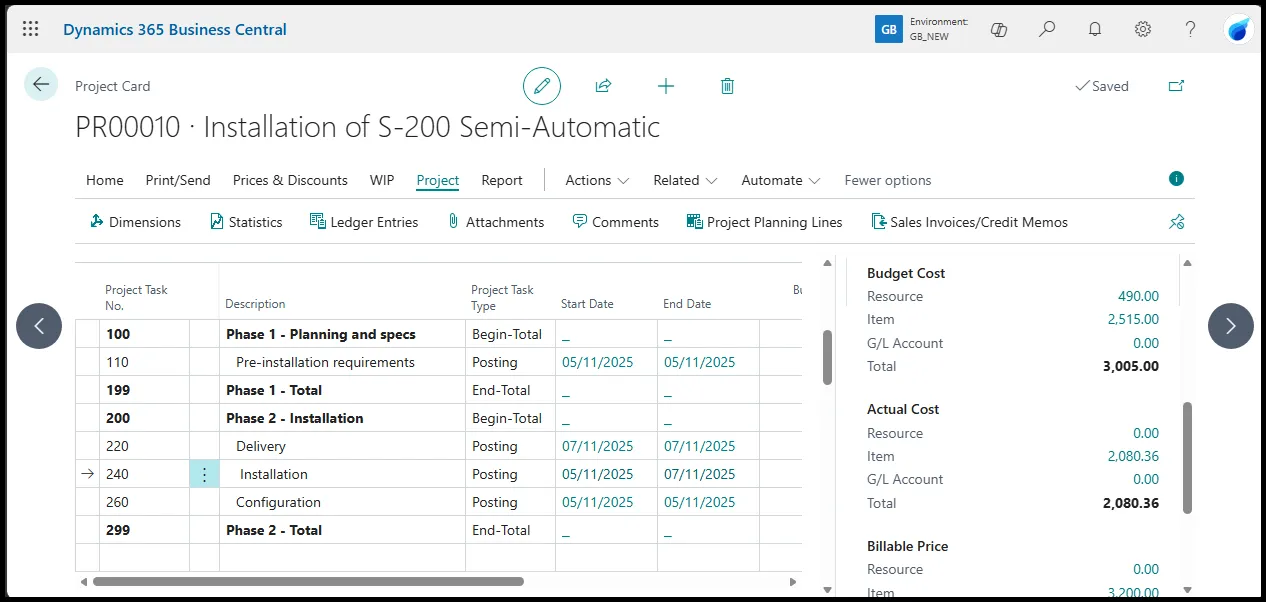
When an inventory item is consumed on a project, Business Central first creates an item ledger entry that reduces on-hand stock and captures the cost according to the item’s costing method.
More on choosing an inventory costing method.
The project ledger then holds its own view of that same consumption, recorded against the project budget and feeding work-in-progress, profitability and customer billing. You can think of the two ledgers as two views of the same consumption. Business Central keeps them separate and gives you configurable bridges between them, so your finance team decides how and when the cost moves from inventory into the project’s financial picture.
Apply Usage Link: a link between projects and inventory
The Apply Usage Link setting is the first of those bridges. You turn it on as a default on the Project Setup page, or on an individual project card, and from then on each planned inventory line on the project planning lines becomes the single source of truth for expected material quantities.
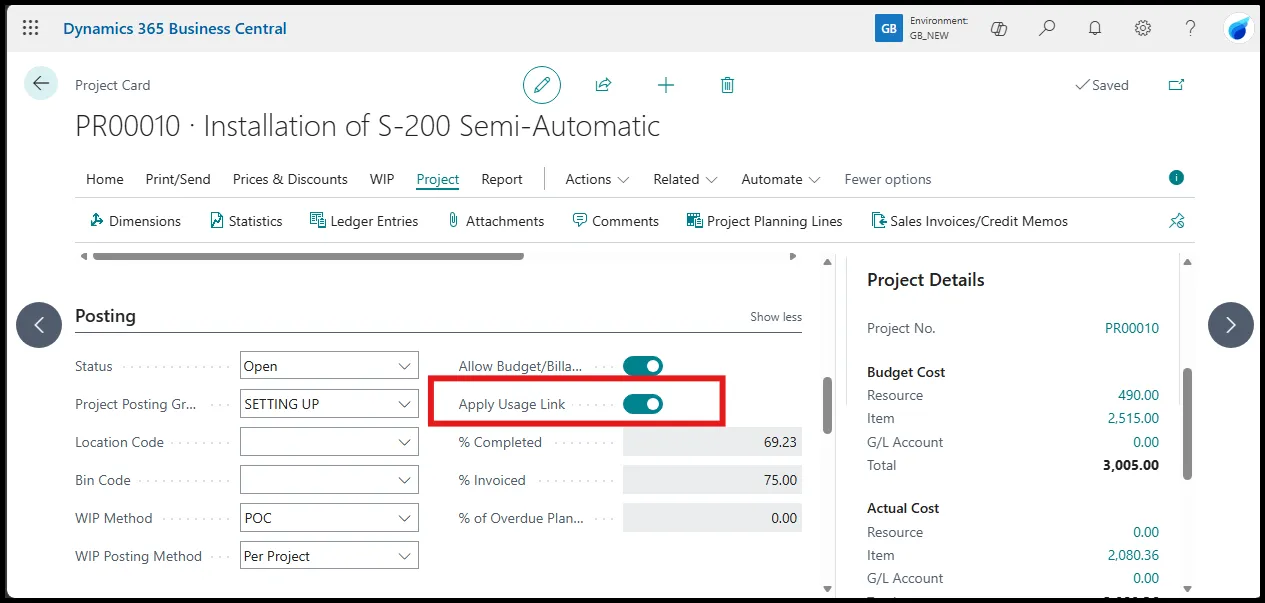
Every time consumption is posted, whether through a project journal, an inventory pick generated from the job, or a linked purchase receipt, the remaining quantity on the planning line updates automatically. That link enables several downstream controls: automatic reservations against the planned line, item tracking across the project lifecycle, and synchronisation with linked assembly orders for assemble-to-order items.
Without the link, the inventory quantity still decreases through the item ledger entry. What you lose is the real-time connection between the project planning lines and actual usage: the remaining quantity on the planning line no longer updates automatically, and features such as direct inventory picks from the job card are not available.
Project posting groups: how Business Central connects items and project costs
Project Posting Groups are the second bridge. They define the general ledger accounts that receive the cost value once it leaves the inventory ledger.
Because the Projects module calculates work-in-progress differently from standard inventory costing, it uses its own set of accounts:
- The Item Costs Applied Account clears the value out of the inventory valuation.
- The WIP Costs Account holds the material cost on the balance sheet while the project is ongoing (depending on the job’s chosen WIP method).
- The Recognised Costs Account receives the cost on the income statement once the project’s revenue-recognition rules allow it.
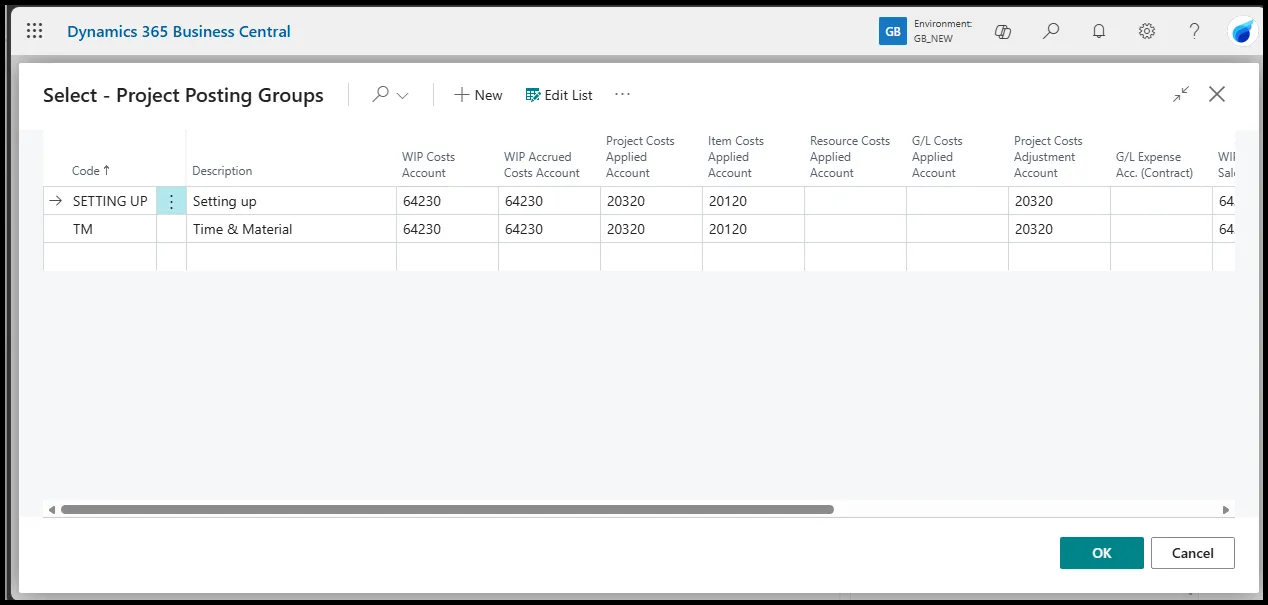
You map these accounts once in the posting group, assign the group to the project card, and the cost pulled from the item ledger entry lands where your accounting policy requires. The WIP method is selected on the job and controls the timing of any reclassification between WIP and recognised costs.
Small and medium projects-based businesses typically run this straight out of the box; larger contractors lean on the WIP and revenue-recognition controls harder to keep profitability reports aligned with inventory valuation.
The role of Line Type in project planning lines
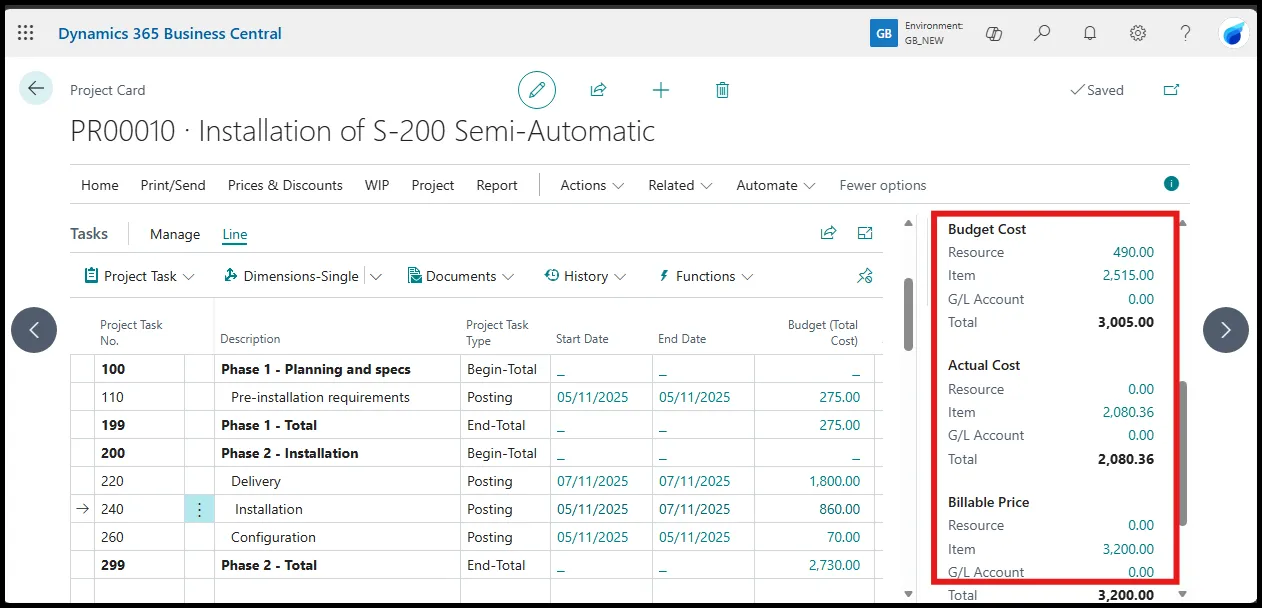
The Line Type field on project planning lines separates internal cost and usage tracking from external revenue recognition on the same record. It lets a single planning line table feed both the job ledger entries and the sales invoicing process, across contract shapes from time-and-materials, where every material cost is recoverable, to fixed-price, where billing follows its own schedule.
The Budget line type
The Budget line type plans the consumption of inventory items for internal project costing and scheduling only. When an inventory item line is set to this type, its quantity and cost feed the job budget calculations and the job ledger entries when you post usage.
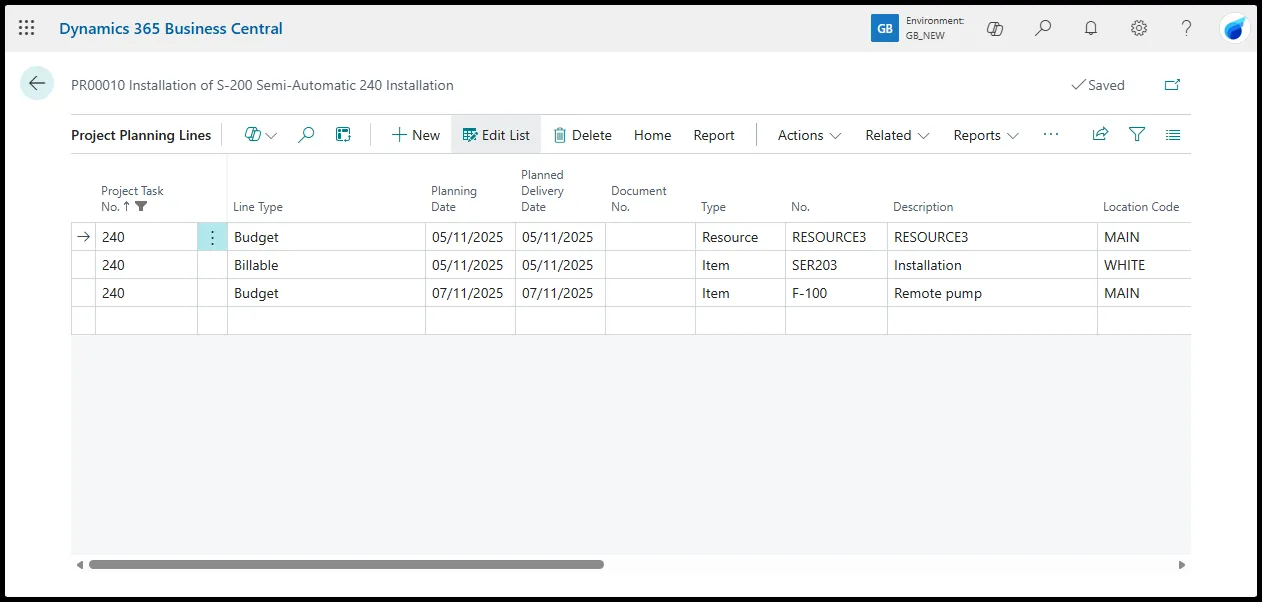
This is the bridge from inventory, where the item ledger entry reduces on-hand quantity and applies the item’s costing method, to the project, where the cost is routed into either the WIP Costs Account or the Recognised Costs Account, depending on the job’s WIP method. No price is recognised for invoicing, so the material cost stays inside the project’s internal view and updates project profitability and remaining budget fields without generating any sales invoice lines.
The Billable line type
The Billable line type does the opposite: it plans the price for inventory items, for revenue recognition and customer invoicing. The line does not feed cost tracking or usage linkage the way a Budget line does; it supplies the selling price and quantity that flow into sales invoice creation.
Consumption of the item still generates an item ledger entry, but that cost does not automatically create a job ledger entry tied to this planning line unless a separate Budget line bridges it. This suits fixed-price or milestone-based projects, where the invoice amount for materials is agreed up front and independent of what the material actually costs.
The Both Budget and Billable line type
The Budget and Billable line type does both jobs on one record: internal cost tracking and external invoicing for the same inventory item. The quantity and cost feed job ledger entries and WIP calculations exactly as a Budget line does, and the price is made available for direct transfer to sales invoices.
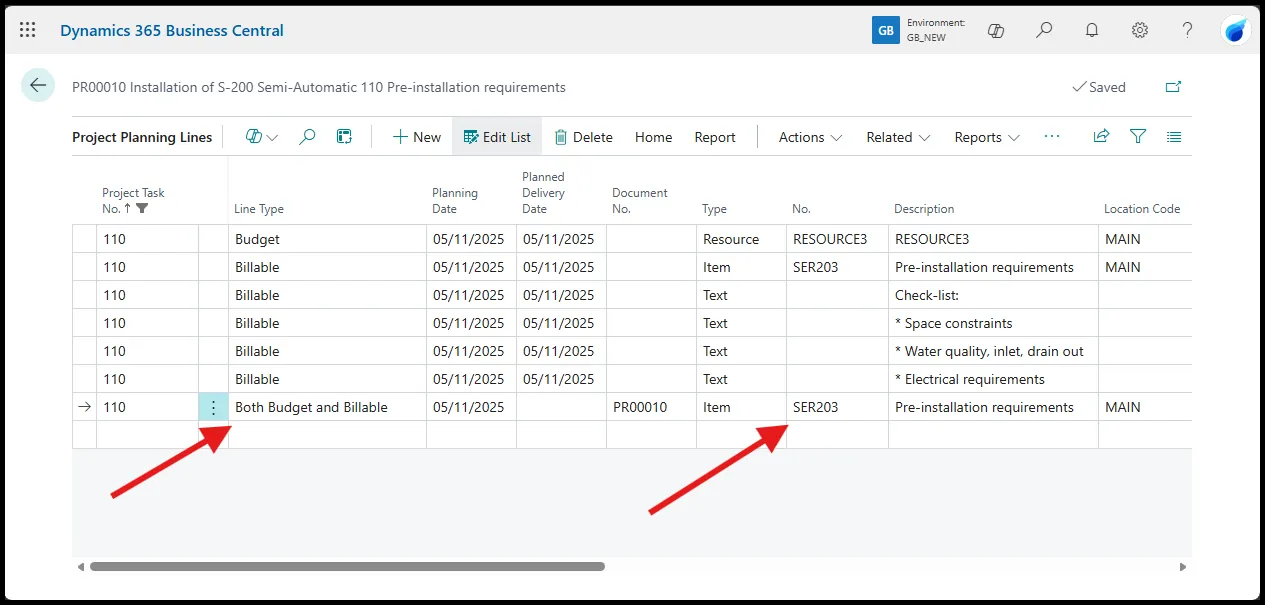
When you post usage against an inventory item on this type of line, the item ledger entry reduces stock, the cost flows through the project posting group into WIP or recognised costs, and the price stays linked for invoicing, without a second planning line. For those automatic quantity updates to propagate across both the cost and price elements, Apply Usage Link must be active on the project. This is the line type for hybrid contracts, where material costs must be traceable for profitability while the same quantities are recovered from the customer.
Line Type on source documents vs planning lines
The Line Type field behaves differently on a project planning line than it does on the source documents that feed the project: job journal lines and purchase lines. On a planning line it shapes the plan; on a source document it decides whether posting also touches that plan.
When Line Type is left unspecified on journal or purchase lines
Leave the Line Type blank on a job journal line, or on a purchase line that references a job task, and the transaction still posts normally: Business Central generates the item ledger entry and creates the corresponding job ledger entry. What it does not do is create or update a project planning line.
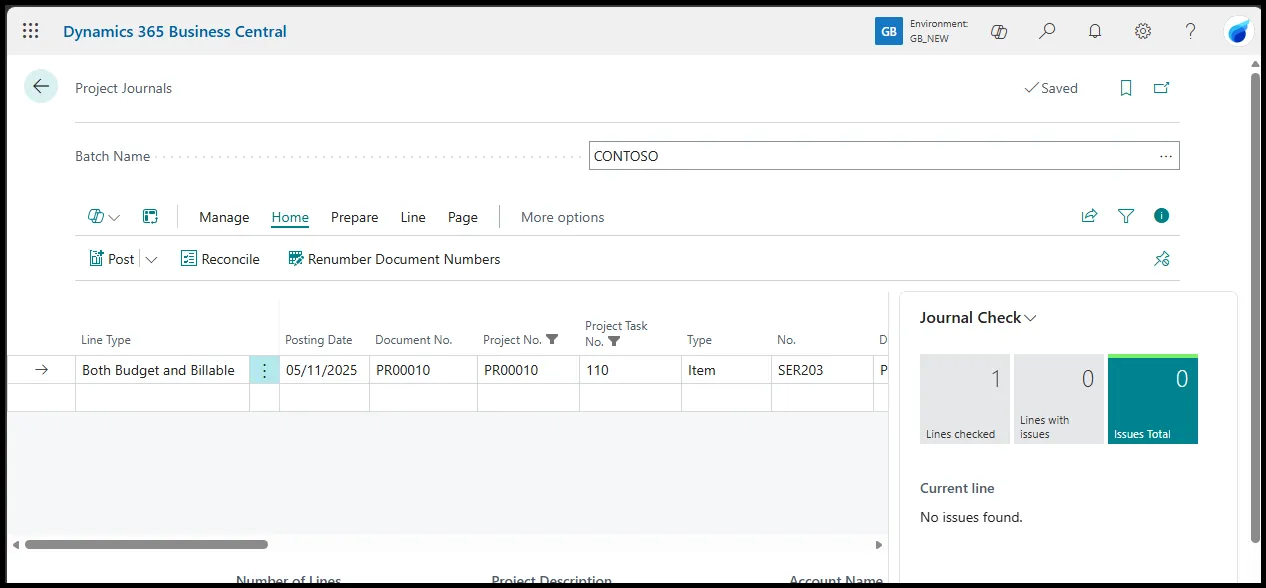
Without a Line Type value on the source document, the posted consumption does not update remaining quantities, support automatic reservations, enable item tracking on the planning line, or feed variance analysis against the original plan.
Financial and operational implications
Remaining budget fields, outstanding commitments on the job card, and any report that reads planning lines will not reflect the posted activity. Leaving the field blank keeps ad-hoc or corrective postings from creating planning lines by accident, while the core cost and quantity movements still reach the general ledger through the project posting group. Only typed entries feed the planning layer used for WIP calculations, profitability reporting and invoicing.
The purchase-to-project bridge in Business Central
Purchasing inventory items for a project links three areas: purchasing, inventory and projects. Business Central supports two paths for this, and both keep physical stock movements separate from project financial tracking.
Planning-driven purchasing
When you plan inventory items on project planning lines with a Line Type of Budget or Budget and Billable, the planning lines become the demand signal for the planning engine. You can generate purchase orders with Capable to Promise directly from the planning lines or from the planning worksheet. The planned quantity links to the purchase order through reservations, so outstanding purchase orders show on the project card.
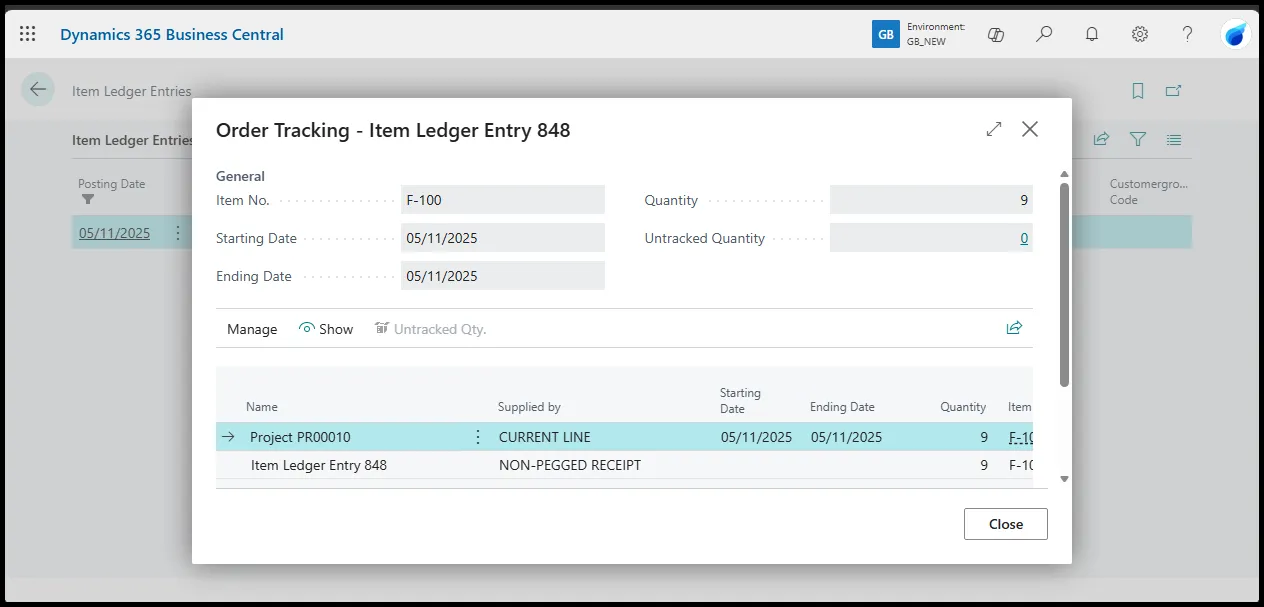
When the purchase order is posted, the resulting item ledger entry can be traced back to the project through order tracking. This link does not, however, keep planned and actual material quantities synchronised for cost calculation.
Direct purchasing for a project
You can also purchase inventory items by entering a purchase order or purchase invoice line with a direct reference to a Project No. and Project Task No., or by using a dedicated action on the project planning line.
When the purchase order line references a project planning line, posting the receipt does three things at once:
- It creates a positive item ledger entry for the receipt, increasing physical quantity and updating the item cost according to the item’s costing method.
- It immediately creates a negative adjustment item ledger entry that writes the same quantity off to the project.
- It creates the Project Ledger Entry of type usage that a Project Journal would otherwise create.
In essence, the net effect on on-hand inventory is zero: the item is received and consumed in one posting step and never sits in general stock. On the projects side, the cost routes through the project posting group into WIP or recognised costs, and the planning line’s Remaining Quantity stays synchronised when Apply Usage Link is active.
Invoice posting when linked to a project planning line
Posting the purchase invoice finalises the cost in the project ledger and the general ledger. Any interim accounts or price differences clear at this stage, so the full cost value is available for project profitability calculations and the Post Inventory Cost to G/L batch job.
Direct purchases without a planning line
If the purchase order line references a project number and task number but has no linked planning line, or the Line Type is left blank, the receipt still creates the positive item ledger entry, but the immediate consumption is not generated automatically. The item enters on-hand inventory normally. You then record consumption separately, through a project journal line or an inventory pick from the job, and the job ledger entry of type usage is created only when that separate consumption is posted.
How to plan production for a project without a sales order
You do not need a sales order to plan production for a project. A project (job) planning line of type Budget or Budget and Billable with an inventory item on it is a source of demand in its own right, and the planning engine can act on it.
The Order Planning page covers far more than sales demand. Run Calculate Plan, and it lists unfulfilled demand from every source: sales orders, production order components, assembly order lines, service orders, and job planning lines. Your project’s demand sits there alongside the rest.
In the Replenishment System field on the planning line, you choose Purchase, Transfer, or Prod. Order, and Make Supply Orders creates the matching order. So a project that needs a manufactured item creates a production order, not a purchase order.
Transfer demand is the one exception, because the Order Planning page does not include transfer-order demand; for that you use the Planning Worksheet instead. Whichever supply order Order Planning creates links back to the project through order tracking, the same reservations-and-usage link the Apply Usage Link setting maintains.
A manufacturing client of mine needed to produce items for their projects. They had read the Microsoft Learn planning documentation, which frames production planning around sales demand. That is the most common scenario, but it is not the only one, and the team had assumed they needed a sales order to trigger production planning for a project. When I showed them that an item on a project planning line generates demand that Order Planning can fulfil with a production order, they reconfigured the whole setup.
Why there’s no sales shipment document
There is no sales shipment document because the item on a project is not sold as a separate deliverable. The Sales Shipment document belongs to sales documents, where an item is delivered to a customer as the primary transaction and the shipment creates the item ledger entries that feed customer invoicing. On a project, the item is consumed as part of the project work.
The sales invoice comes directly from the planning lines or the job task, using the price component of the Budget/Billable lines, not from a shipment document. A sales shipment here would only add a bridge to the Sales ledger and duplicate the consumption already posted in the project ledger.
The Assemble-to-Project capability
Assemble to Project extends the same bridge to Assembly Management. It covers projects that need assembled items but do not hold those finished goods in stock ahead of need. The assembled item is treated as project-specific demand.
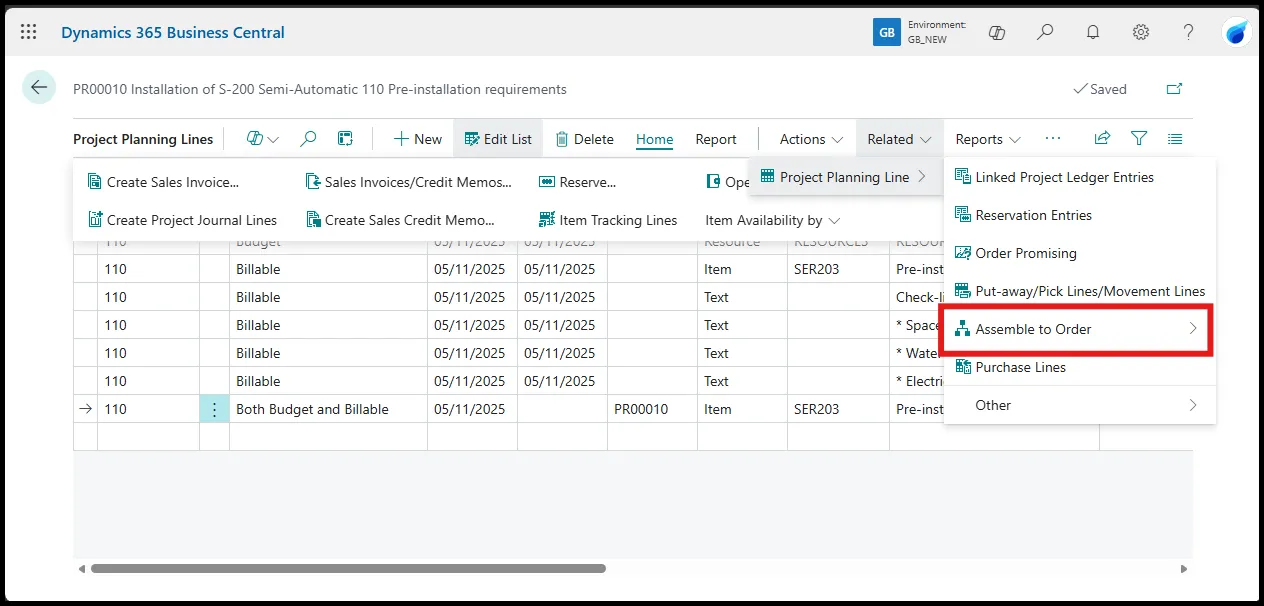
Automatic creation of the assembly order
When you enter an item with an assembly bill of materials on a project planning line of type Budget or Budget and Billable, and the item’s Assembly Policy is set to Assemble-to-Order, Business Central creates a linked assembly order. The assembly order quantity matches the project planning line quantity, and its component lines come from the item’s assembly BOM, scaled by that quantity.
The assembly order is reserved against the project planning line. That reservation keeps item tracking, availability and quantity updates in step between the assembly order and the planning line.
Posting flow: assembly and immediate consumption
Posting consumption on the project planning line, through a project journal or an inventory pick, posts the assembly order automatically:
- The assembly order consumes the required components through negative item ledger entries, reducing component inventory according to each component’s costing method.
- It posts the output of the assembled item as a positive item ledger entry, increasing the assembled item’s quantity and updating its cost.
- A negative adjustment item ledger entry immediately writes the assembled item off to the project, so on-hand inventory for the finished item nets to zero.
At the same time, the projects module creates a project ledger entry of type usage for the assembled item, its cost taken from the assembled item’s BOM and routed through the project posting group into WIP or recognised costs.
Accounting principles: expense and billing of inventory items on project planning lines
For inventory items on project planning lines, cost and billing run on separate tracks. Project financial reporting tracks the actual material cost, while customer invoicing follows the commercial terms of the contract, and the two do not have to match.
Cost flow and expense recognition
Consumption of an inventory item, whether automatic at purchase receipt or through a project journal line, inventory pick, or warehouse pick, first creates an item ledger entry that reduces physical quantity and applies the item’s costing method. The cost value then transfers to the projects module through a project ledger entry of type Usage, and the Project Posting Group routes it through the same three accounts described above: Item Costs Applied, the WIP Costs Account (a balance-sheet capital asset account) while the project is open, and the Recognised Costs Account (an income-statement expense account) once the cost is recognised. The timing of the reclassification from WIP to recognised costs is set by the WIP Method on the project card: Cost Value, Cost of Sales, Percentage of Completion, or Completed Contract. The Post Inventory Cost to G/L batch job then creates the final general ledger entries, so the cost lands correctly on the balance sheet and income statement.
More on choosing an inventory costing method.
Billing and revenue recognition
Billing works on the price component of the planning line. Only lines with Line Type set to Billable or Budget and Billable contribute price values to sales invoice creation. The price, taken from the item card Sales Project Prices List or entered manually on the planning line, flows directly into the sales invoice when the job task or planning line is invoiced.
No link is required between the posted cost and the billed price; the two sides stay separate until the invoice is created and posted.
Next steps
Inventory items on projects always create an item ledger entry first, to keep physical quantity accurate. The Projects module receives those costs as project ledger entries of type Usage, with the general ledger routing set by the Project Posting Group and the job’s WIP calculation method.
Apply Usage Link and the Line Type field (Budget, Billable, or Both) keep planning lines in step with actual consumption while keeping cost flows independent of billing. Purchasing, consumption and Assemble-to-Project all follow the same pattern: the item is consumed to the project immediately or explicitly, general stock nets to zero, and the cost routes into WIP or recognised costs.
For more on the module and its features, see the Business Central hub.