Use contacts in Dynamics 365 Business Central
Behind every customer or vendor, there is a person. Whether in sales, purchasing or finance, your daily schedule involves frequent interactions with real people, not companies.
Business Central enables you to create and manage contacts and link contacts to customers and vendors to manage your interactions with critical users for daily operations and plan the next marketing campaign. This post will teach you how to set up and manage contacts in Business Central.
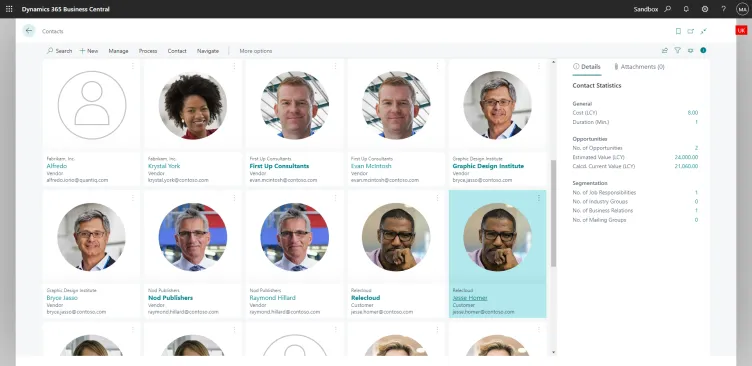
Set up contacts
Before creating new contacts in Business Central, you must define some settings on the Marketing Setup page. Although the page is called Marketing setup, contacts in Business Central can be used in operations, purchasing and sales, not just marketing, as we will see later. In the Marketing Setup page, you need to define if contacts will inherit specific attributes from the company they are linked to and other default fields like number series. Let’s look at the page fast tabs:
The Inheritance FastTab
The inheritance tab is where you can define what the contact will inherit from its primary business entity linked to it. A contact in Business Central can be connected to one of the following entities:
- Customers
- Vendors
- Bank Account
- Employee
An example of inheritance is when a new buyer is created as a contact from an existing customer. You can decide that the new buyer will inherit your company’s salesperson code already set up for the customer. Conversely, you might decide that new buyers will not inherit the Salesperson code because, for example, they buy a different product range for which another salesperson is responsible.
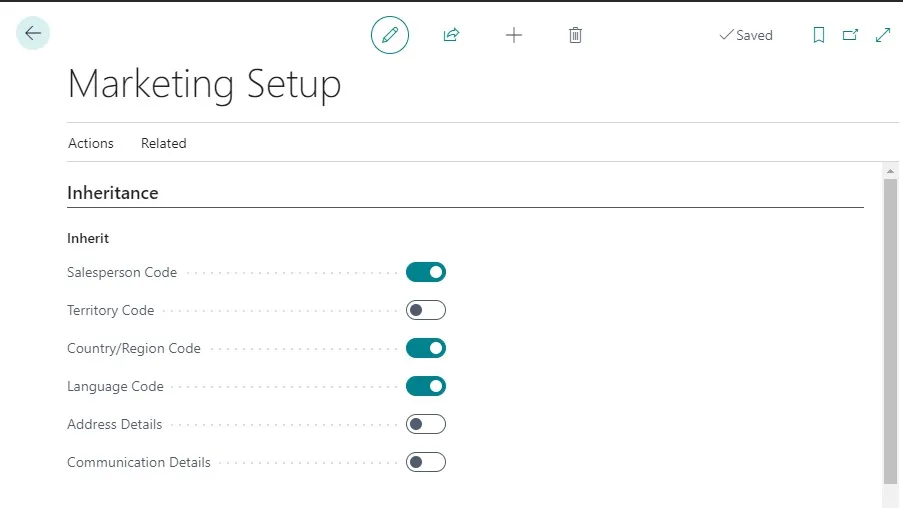
The Defaults FastTab
The default Fast Tab allows you to set up default values for specific fields in the contact card. For example, you can default a language or a country code to new contacts. An interesting feature is the default company and person salutation code.
Salutation codes can be set up against contacts using text formulas linked to the level of formality and language.
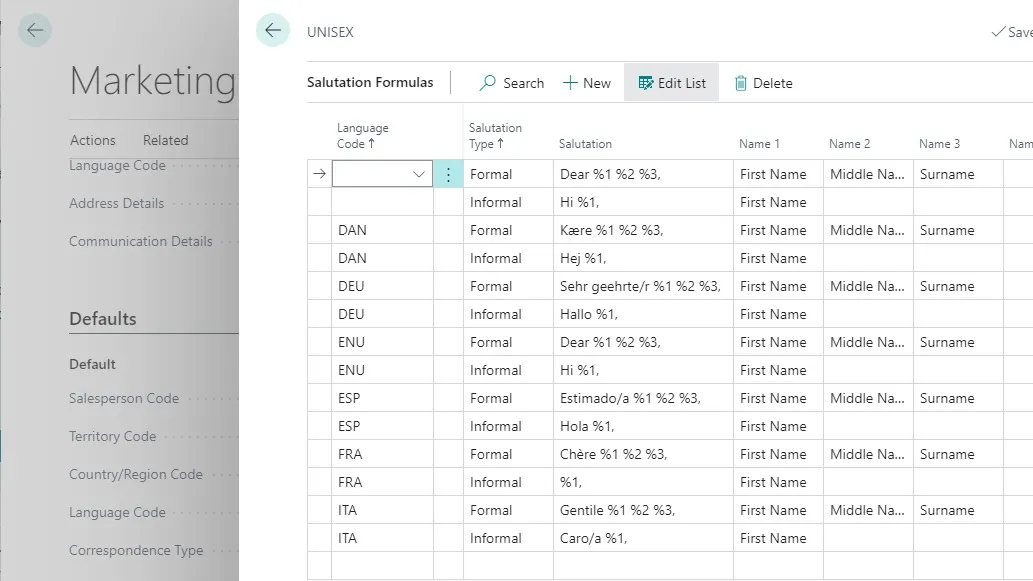
A salutation code with this formula “Hi %1” where the first name “Robert” is in the Name 1 field of the salutation formula will result in a salutation text that reads “Hi Robert” in any email created for that contact in Business Central.
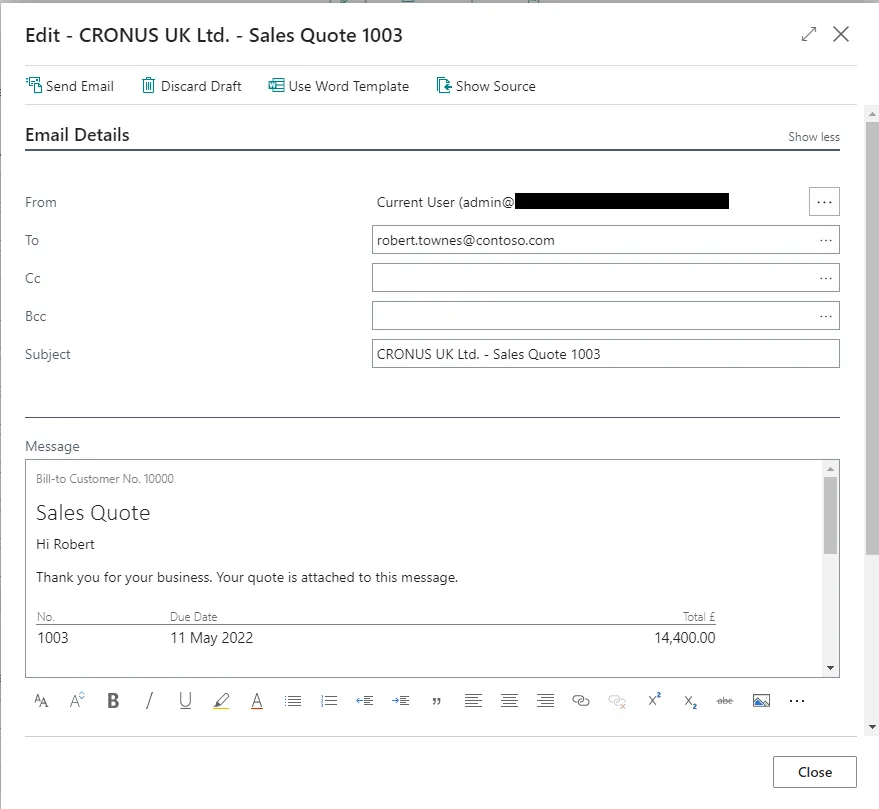
The Interactions FastTab
The Interactions fast tab is where you need to set up the language for your Mergefields to show where Word should insert information it extracts from your data source when using a Word template for your attachments. Please note that this setting applies at the system level. Therefore, it does not default to the language defined on the user setup page.
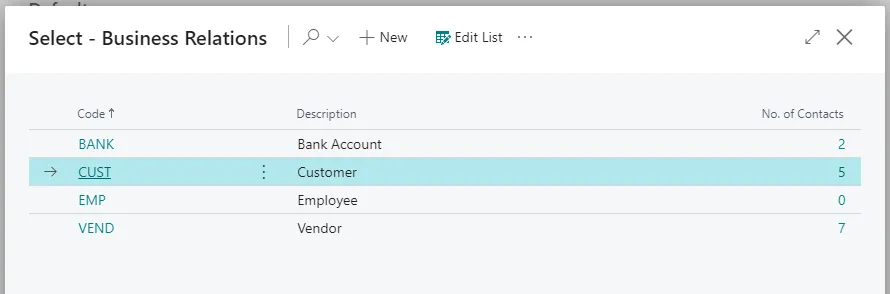
Here, you also need to create the relationships that determine how new contacts will be linked to business entities. This is a standard setup, and you shouldn’t need to change anything. However, if you create a new company with no data, including the setup data, you might find these fields empty. This is how to set up a Business Relation Code correctly:
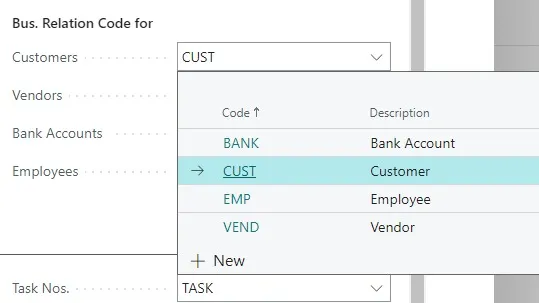
Open the dropdown field of each business relation type and create codes for each. The number of contacts will be automatically calculated.
The Numbering FastTab
The numbering fast tab is where you need to set up the number sequence that Business Central will use when you create new contacts, tasks or opportunities. Like other number sequences in Business Central, you need a default number sequence, but you can set up the numbering to allow manual numbers.
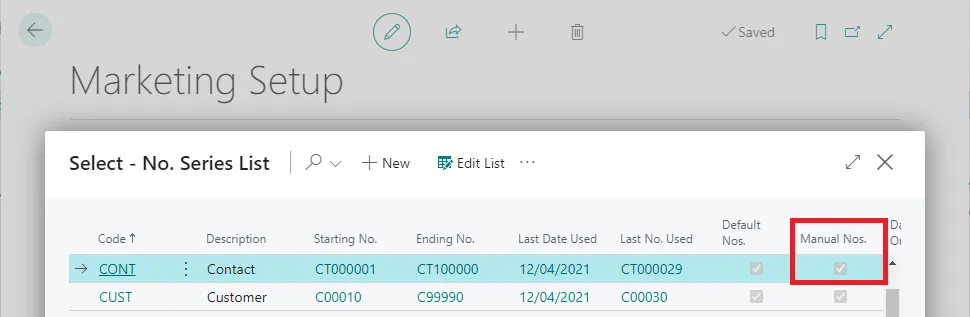
If you allow a manual numbers, you can change the default number assigned to new contacts when you create a new one.
The Duplicates FastTab
Tired of having duplicate contacts in your database? Business Central can automatically find if a new contact you create exists and will warn you if it’s duplicated.

The functionality uses a search string based on certain fields. The combination of those fields and an accuracy percentage, in my example, it’s 60%, tells Business Central if a new contact is likely to be a duplicate.
The setup is managed on the Duplicate Search String Setup page.
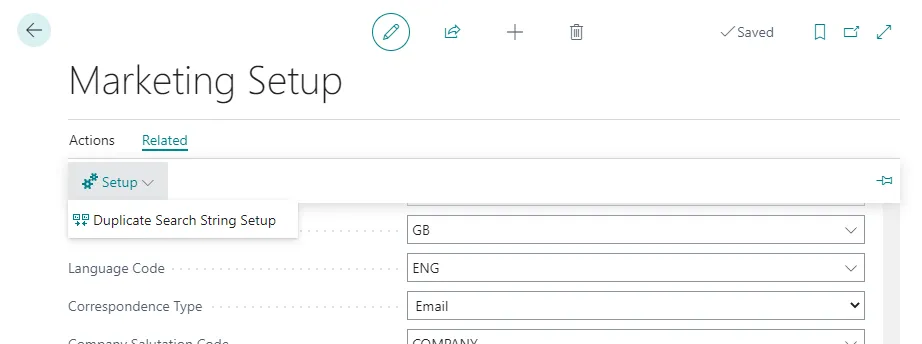
From the page, you need to add the fields of the contact that you want to use to search for duplicates.
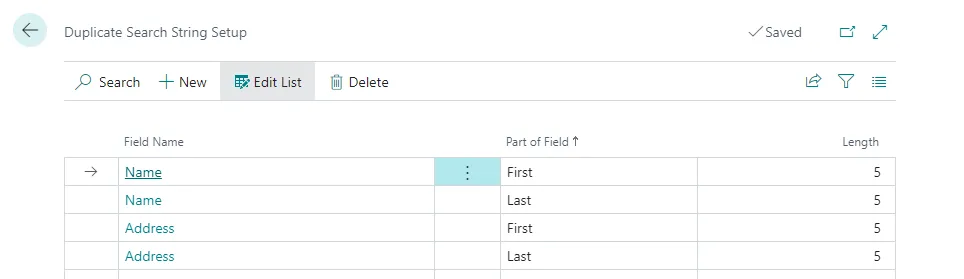
In the picture above, an example of a search string that looks at:
- The first five characters of the field Name of the contact card.
- The last five characters of the field Name of the contact card.
- The first five characters of the field Address of the contact card.
- The last five characters of the field Address of the contact card.
The functionality can run automatically or be triggered manually from the report request page Generate Duplicate Search String.
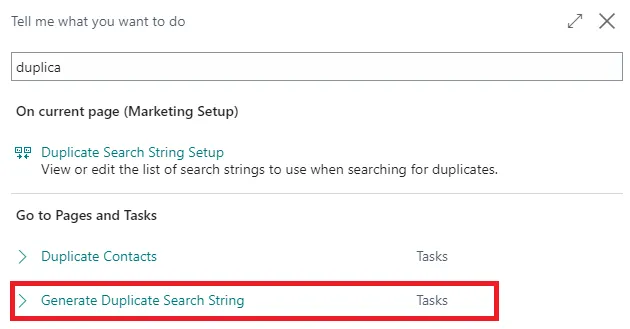
Once the functionality runs, duplicate contacts will show on the Duplicate Contacts page.
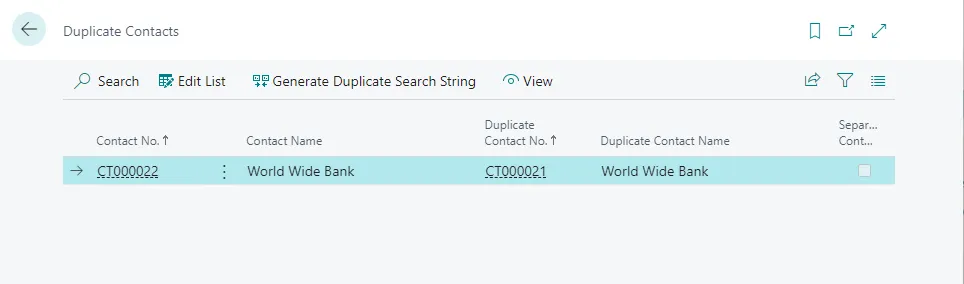
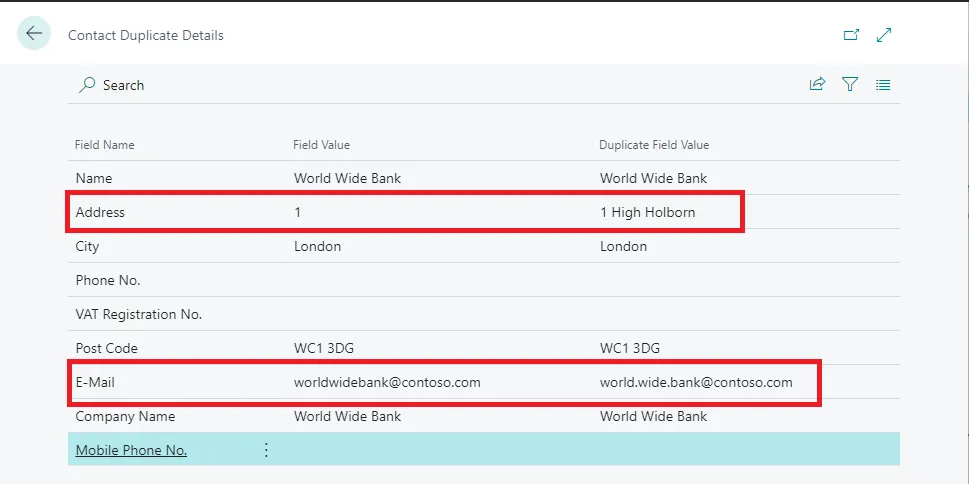
Note how the Search Hit set up at 60% allowed the two contacts to be highlighted as duplicates, even though some fields have different values.
Create contact cards
Now that the setup is complete, it’s time to create contacts. New contacts can be created following different processes. Depending on your company policies, you can decide to:
- Create new contact from an existing customer, vendor or Bank Account
- Create new contact from the contacts list and associate the contact with an existing customer, vendor or Bank Account
- Create new contact from the contact list with no link to an existing business entity. This is usually done when companies want to use contacts to manage prospects who can be turned into customers later.
Create new contact from an existing customer, vendor or bank account
To create a further contact for an existing customer, you need to open the contact list from the customer card. You can access the contact list from the Navigate menu on the Customer list page.
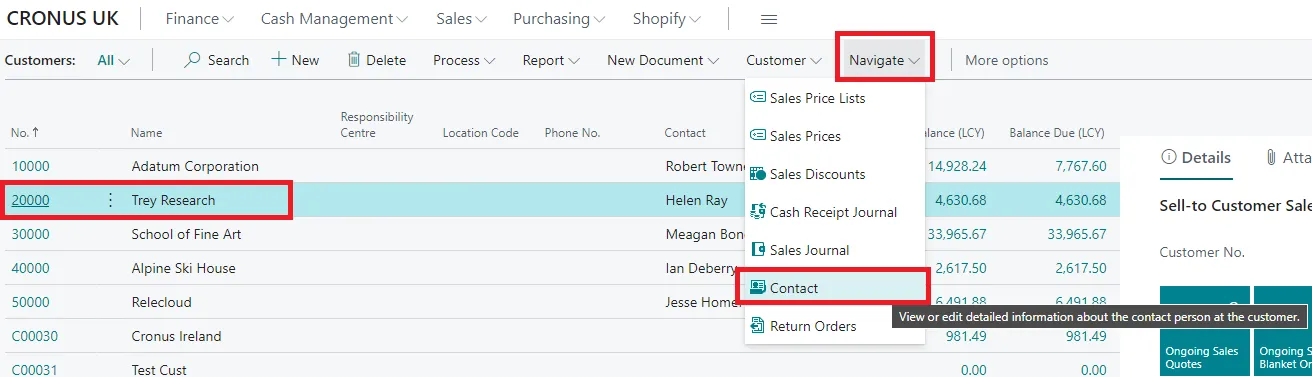
The page shows a list of existing contacts already linked to this customer. You can see that one record is in bold. The bold records in the contact list are companies while the other are persons. The difference between company and person type of contact is simple:
- A company-type contact is linked to a business entity, like a customer or a vendor.
There is no need to create a company-type contact for the related business entities like a customer. Business Central will autogenerate the company contact when a new customer is created if a number series exists in the numbering field. You can leave the field blank if you don’t want Business Central to generate these contacts automatically. If you do, you must make these company-type contacts from the customer.
- A person-type contact is linked with company-type contact.
A person-type contact is linked to the company-type contact, never to the customer or vendor.
Merge duplicate contact records
Business Central can find duplicate contacts and merge them into one contact if duplicates exist. The functionality runs on the Duplicate Contact task. Search for duplicate contacts and open the link.
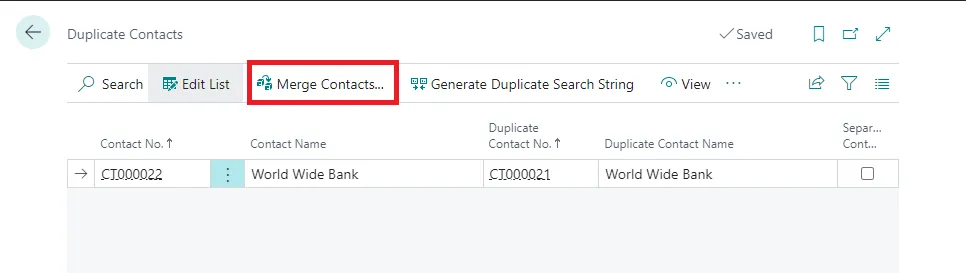
You can merge straight away if there are no conflicts. For example, if the phone number of the two contacts differs, you must confirm which one to keep.
One contact, two companies
In a recent update, Microsoft has introduced the ability to set up the same contact with two business entities; for example, to link a customer to a vendor, or a vendor to a bank. Only company-type contacts can be created against multiple business entities. To create a vendor linked to a customer, start from the company contact and use the action “Create As”.
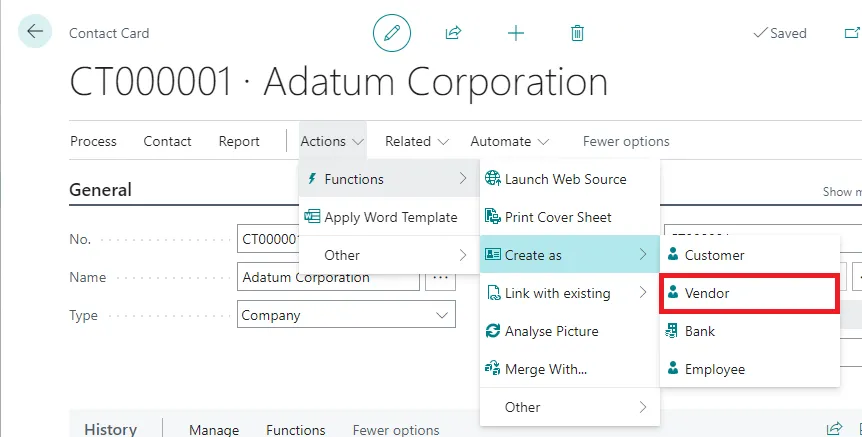
Once the new vendor is created, it will be automatically linked to the contact and the business relation field will show “Multiple” instead of customer or vendor.
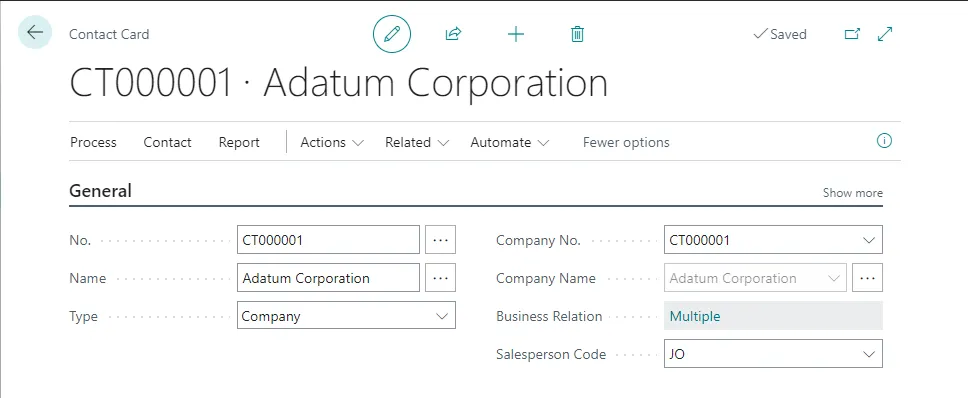
Note: It is not possible to link a company-type contact to a second existing business entity. For example, a customer contact cannot be linked to an existing vendor.
Closing thoughts
Contacts in Business Central allow you to store information about customers, vendors, banks, and employees. Besides the basic info, contacts come with additional functionalities that allow, for example, to use contact details when sending a sales invoice to a customer.