Sales Prepayments in Business Central: Setup & Invoicing Guide
Collecting payments from customers before your team can ship an order is the purpose of sales prepayments in Business Central. This feature is designed to handle customer payments before posting a sales invoice, while establishing a direct link between a payment and the order via a Prepayment Invoice.
This feature supports both order fulfilment and credit control, and does two jobs at once: It serves as a control mechanism for order dispatch, blocking the shipment of the sales order until the customer pays. It is a credit control tool that helps the AR team keep track of customer payments for orders that have not been fulfilled.
What is a sales prepayment?
Sales prepayment, also known as advance payment or down payment in other ERP systems, is a process that allows organisations to issue a request for payment from customers in the absence of a commercial invoice. Unlike what happens with the standard AR process, where the system creates an entry in the sales ledger when the team posts a sales invoice (unless the customer pays on delivery), a sales prepayment creates a pre-forma invoice that hits the ledgers in a different way compared to a regular Posted Sales Invoice.
A typical sales prepayment process in an ERP is made up of the following steps:
- The sales team creates a sales order.
- The order shows a prepayment %, which is the required amount payable before the team can fulfil the order.
- The AR team creates a prepayment invoice, also called a pro-forma invoice, linked to the sales order, which stays blocked until the payment is received.
- The customer pays, the payment allocation updates and unblocks the sales order.
- The order is fulfilled, and the sales order can be invoiced.
- The remaining amount is payable.
In Business Central, the prepayment invoice is generated from the sales order, not a draft invoice or a quote.
Setting up Business Central for sales prepayments
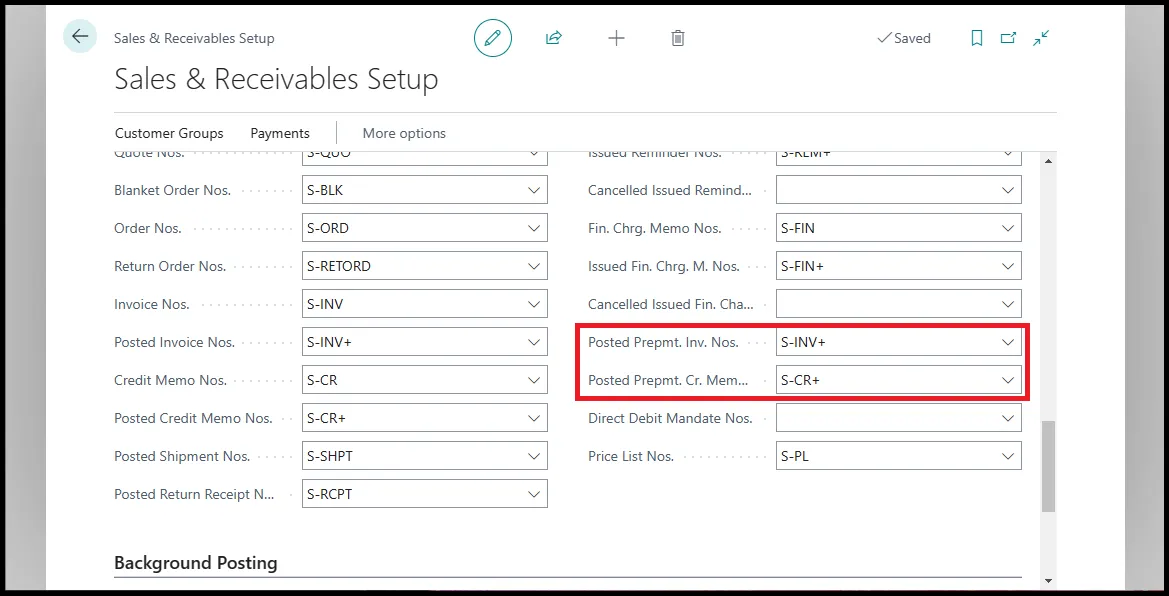
Sales prepayments are transactions that are registered as prepayment invoices; as such, Business Central requires a dedicated number series for prepayment invoices and prepayment credit memos on the Sales & Receivables Setup page.
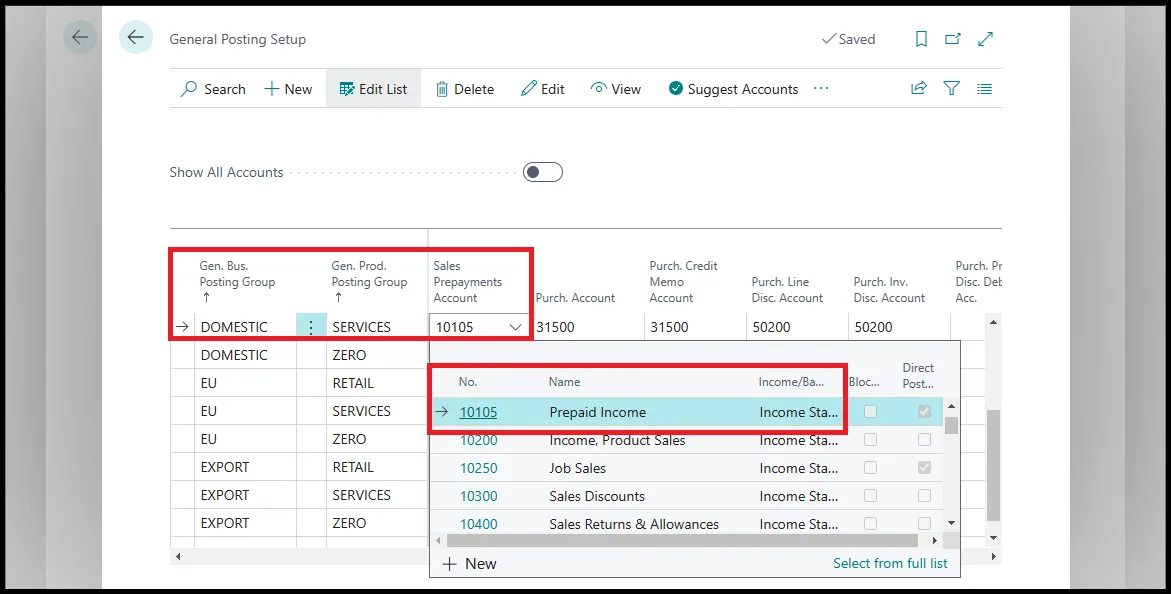
Next, we need to set up dedicated general ledger codes in the Sales Prepayment Account on the General Posting Setup page. For most companies, sales prepayments are considered a liability.
Some companies, mainly in professional services, register sales prepayments as prepaid revenues in their income statement. Business Central supports both scenarios, as you can see in the picture below, where I have set up an income statement account as a sales prepayment for service transactions.
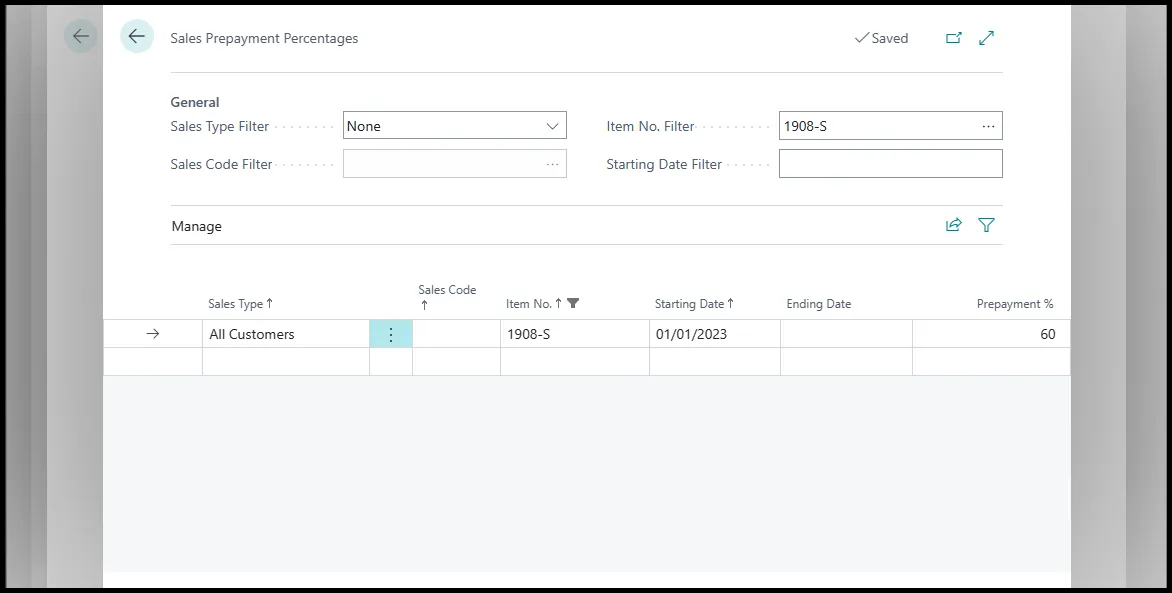
The final setup element to handle sales prepayment is to define prepayment percentages for customers or items.
While the first scenario is the most common, sometimes a default prepayment for customers might not be required. For example, when a customer with standard payment terms places an order that exceeds their credit limit. Here, users can define a prepayment percentage on the order.
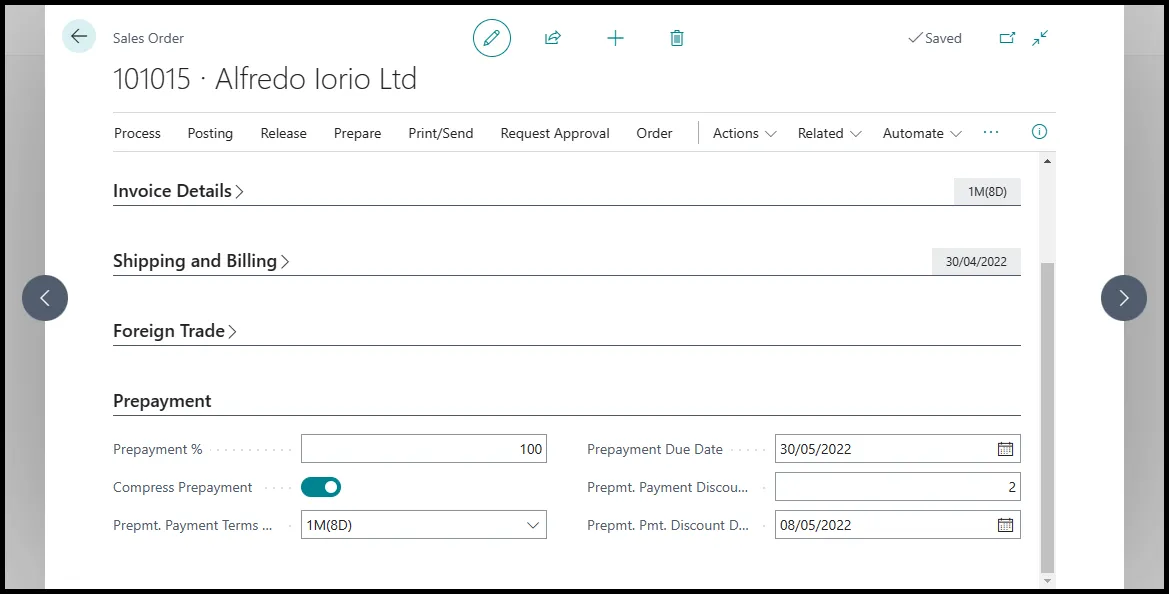
In the picture above, I have an example of a sales order with a 100% prepayment percentage and dedicated prepayment terms and discount.
Creating sales orders with prepayments
With the proper setup in place, we can go through the entire process to create and post a Sales Prepayment in Business Central. In this example, we will start with an open sales order. For more details on how to create a sales order in Business Central, check my other post here: Mastering Order to Cash Processes: A Comprehensive Guide for IT Managers & CIOs
Posting the sales prepayment invoice
The next step is to post the prepayment invoice. The action is under the Prepayment tab on the sales order page. Users can also preview how the entries will post to the general ledger using the function Preview Prepayment Invoice Posting.
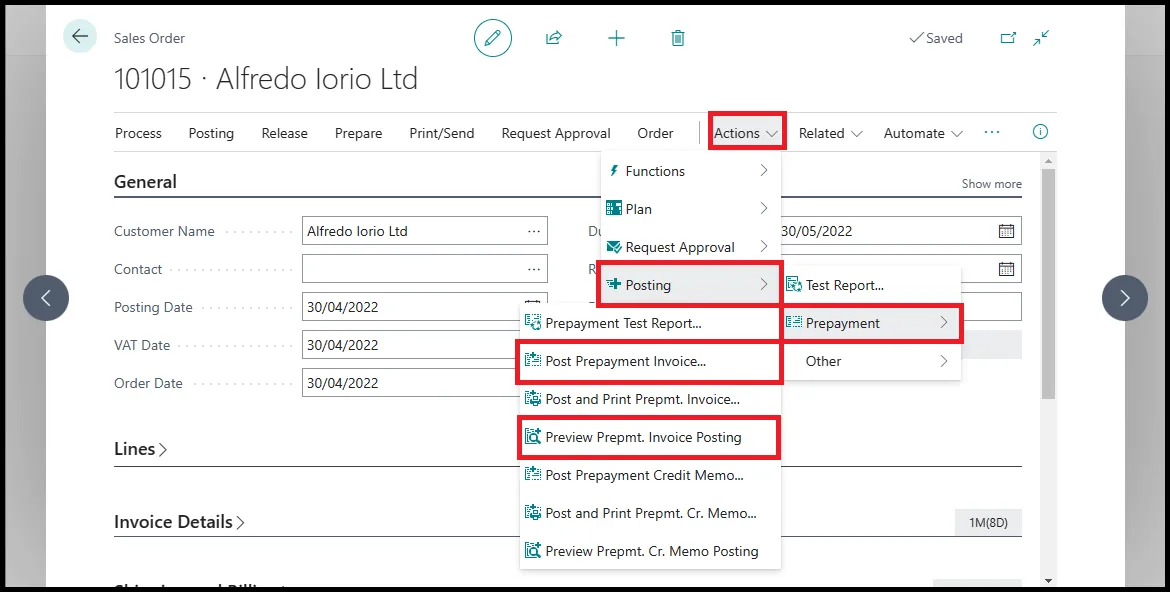
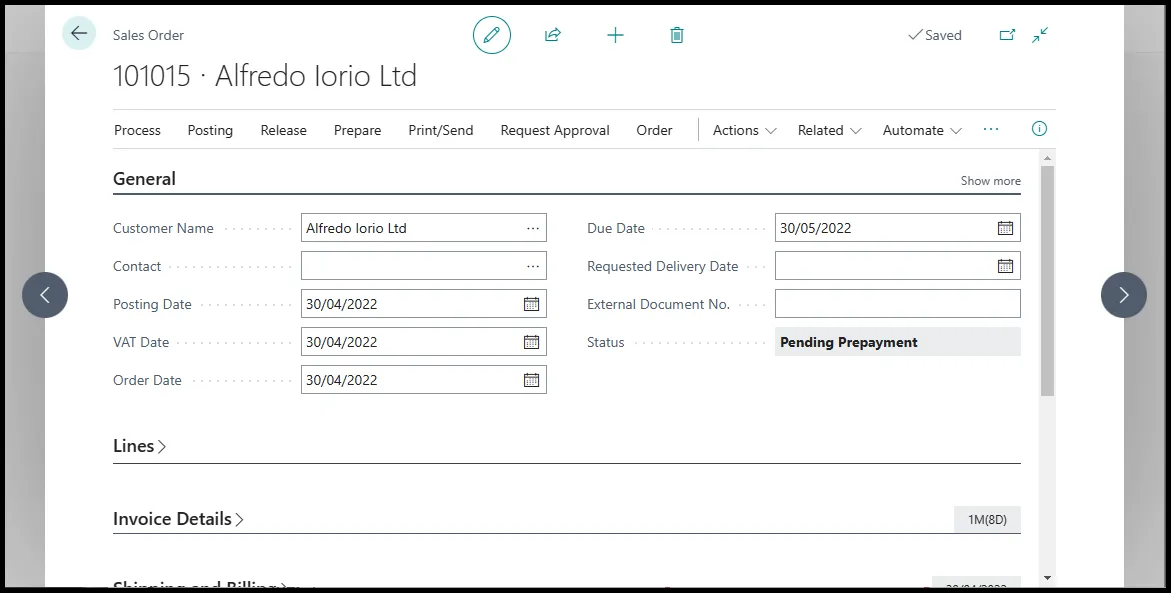
Business Central creates a link between the prepayment invoice and the order, which allows the automatic reversal of entries when users register the payment and post the final invoice. As a further help and to avoid double entries, the order status changes from Open to Pending Prepayment.
Payment registration and application to the prepayment invoice
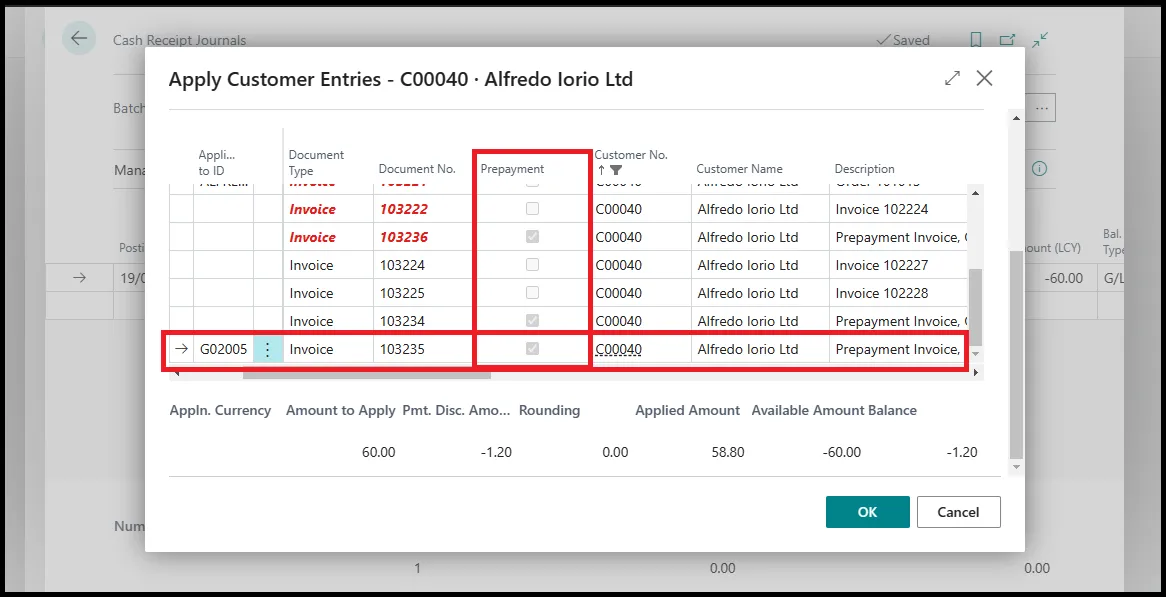
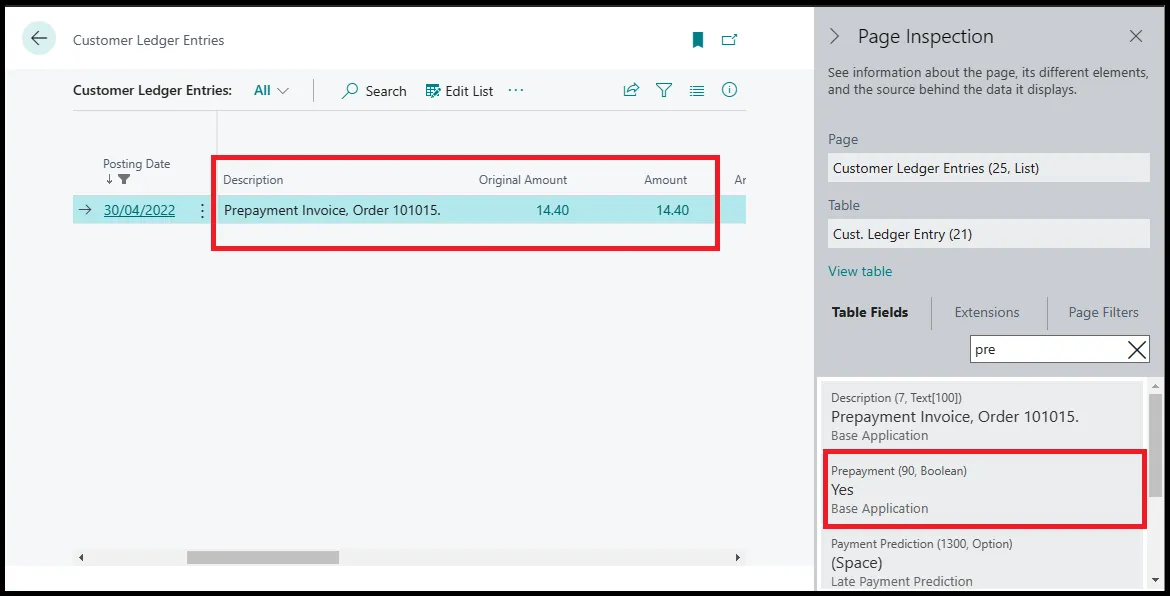
When the customer payment is received, users can register the payment and manage the application. In Business Central, a prepayment invoice shows in the customer ledger entries like a normal sales invoice, but with an identifier that helps users find the correct document for the application.
Fulfilling the order and posting the final sales invoice
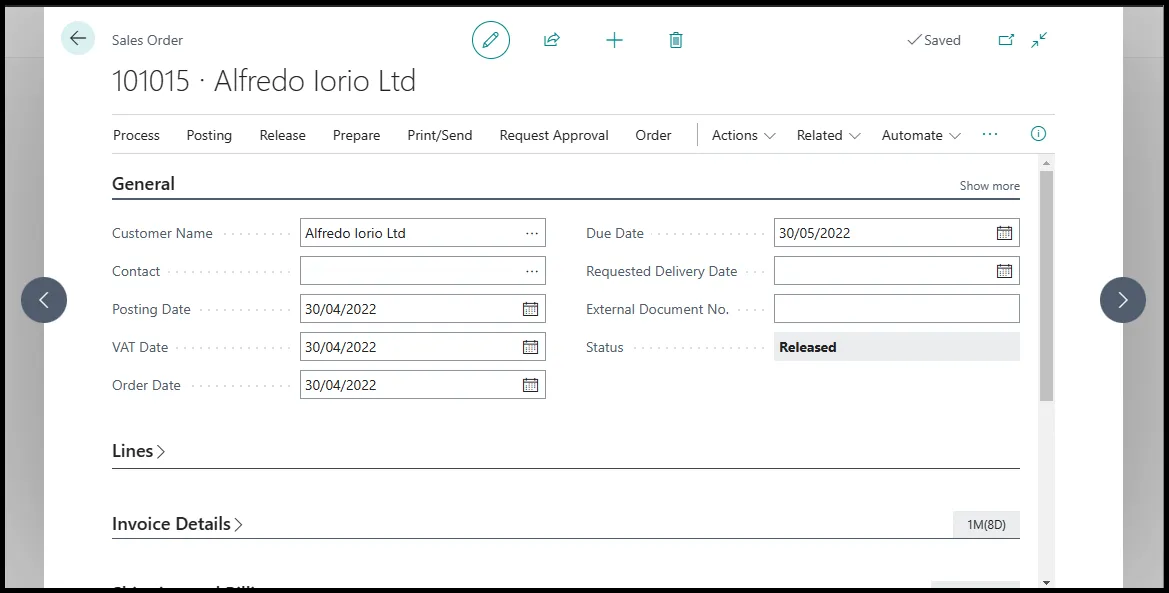
The last step of the process is where users can fulfil the order. In Business Central, the link between the prepayment invoice and the order is always maintained; therefore, users can now release the order and proceed with the fulfilment.
For more details on how to ship items, check my other post here: The Complete Guide on how to Ship Items.
Understanding the accounting side of sales prepayments in Business Central
In Business Central, a prepayment invoice is similar to a normal sales invoice with one fundamental difference: the amount is registered in a prepayment account. As I mentioned before, this can be a liability in the balance sheet or revenues in the income statement. Regardless of the setup, posting a prepayment invoice in Business Central will result in the following transactions:
- Dr. Accounts Receivables
- Cr. Prepayment
- Cr. Tax
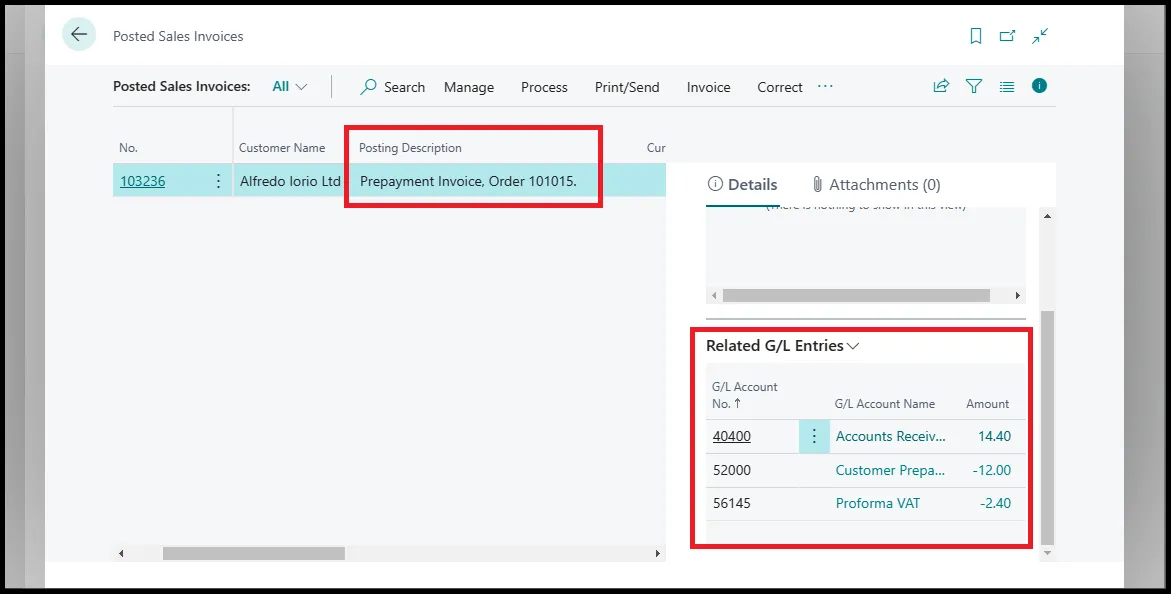
Likewise, the Customer Ledger Entries show the prepayment invoice as a prepayment document with the original amount.
Cash receipt and allocation
A simple transaction between Cash and AR accounts occurs when users receive cash and apply the receipt to the prepayment:
- Dr. Cash
- Cr. Accounts Receivable
At the same time, Business Central closes the prepayment invoice, and we can see that the prepayment invoice is fully paid because the field Remaining Amount is zero.
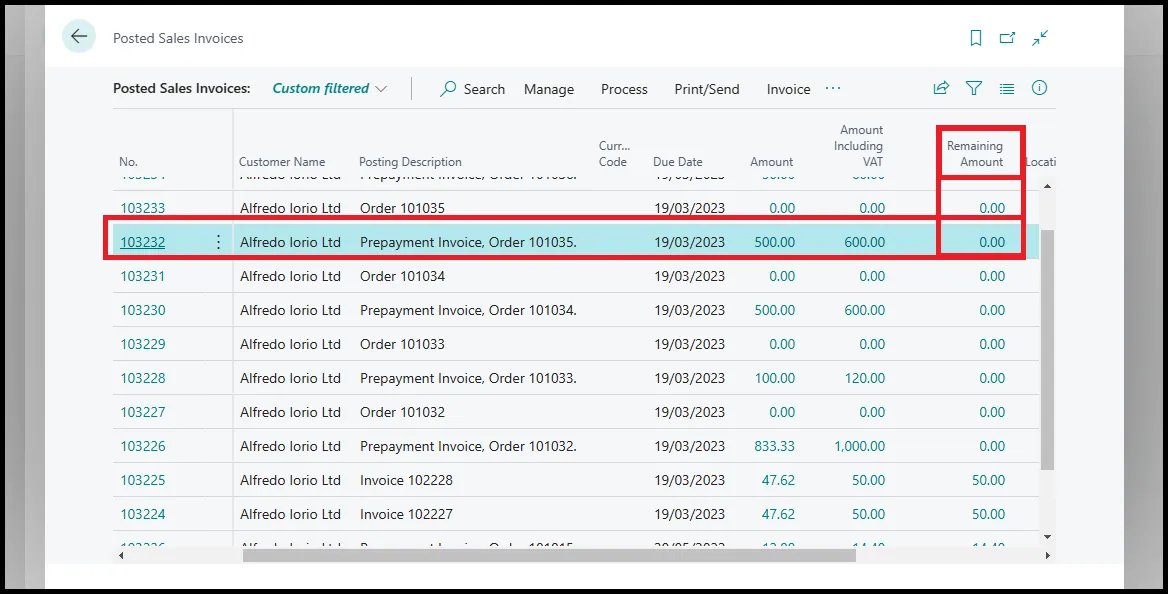
Business Central also creates an entry in the Bank Ledger Entries that will remain open until a user processes a bank reconciliation.
Sales invoice: prepayment reversal in the general ledger and customer sub-ledgers
The last accounting side of a sales prepayment process is the posting of the final invoice. In this phase, we have additional entries than in a normal sales invoice, where we debit revenues and credit accounts receivable transactions. The entries are:
- Dr. Prepayment
- Cr. Revenue
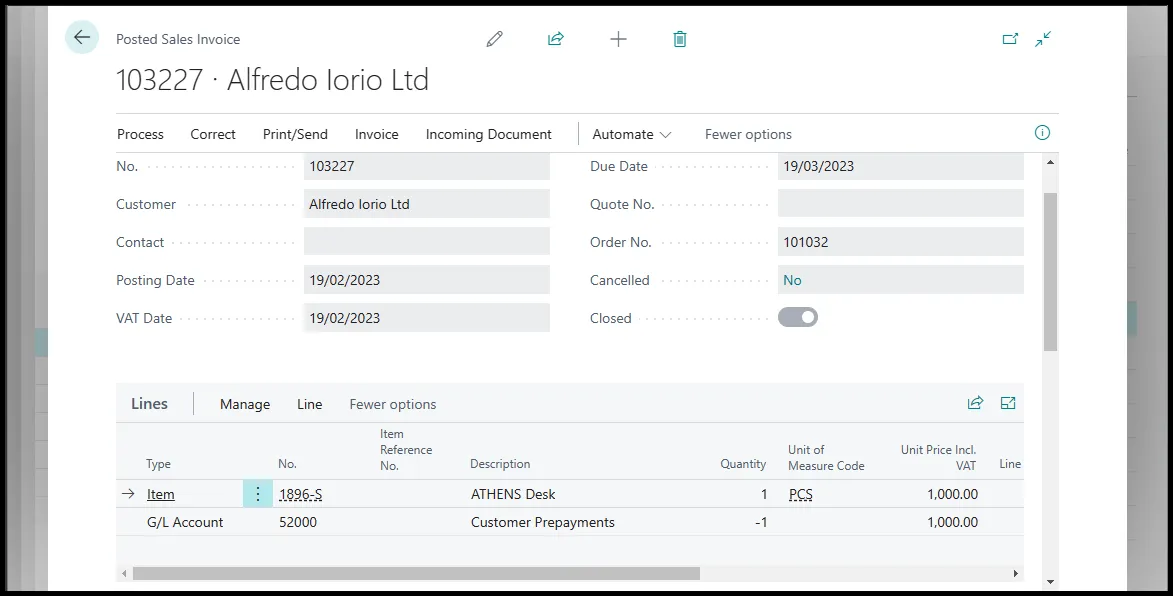
The customer ledger entry generated by the sales invoice is already closed because Business Central will automatically apply the prepayment to the new invoice. In the example below, I have an invoice for an item generated from a prepayment. You can see that the prepayment shows on the invoice as an additional line.
Closing thoughts
Managing sales prepayments in Business Central allows organisations to manage customer payments for sales orders using dedicated prepayment (pre-forma) invoices before posting the commercial invoice, while establishing a link that prevents the fulfilment of the sales order until the payment is received and allocated.
To learn more about Business Central’s capabilities and features, check our official training for the MB-800 certification here.