How to Setup and Use Lot Numbers in Business Central
Achieve complete traceability using Lot Numbers in Business Central. In this guide, I will cover the end-to-end process of creating, assigning and managing lot numbers in Business Central and achieving full traceability on your inventory.
I worked in the Food and Bev industry for many years before becoming a Microsoft Certified consultant. Inventory planning for food companies requires strict control of lot numbers. Not only are lot numbers critical for achieving full traceability, but these are also essential in reducing wastage due to obsolescence.
What are lot numbers in Business Central?
Lot numbers are unique references that carry information like expiration dates and comments attached to inventory transactions, which are recorded as Item ledger entries.
Like the serial and package tracking functionality, lot numbers are based on the reservation system that links tracking information to item ledger entries. Therefore, warehouse activity documents that register only warehouse entries, like warehouse picks, put away and bin movements, do not support lot numbering in their core functionality. However, the reservation system, and as a consequence, the item tracking works on warehouse activities through the source document of the warehouse line. For example, lot numbering on a pick note is linked to the sales line.
Lot numbers cannot be enabled for items where inventory transactions already exist. If you need to track an item with lot numbers, you must complete the setup before the item is first received.
What can we do when lot numbering is enabled for specific items?
When lot numbering is enabled for specific items, we can:
- Track end-to-end transactions by item and lot number.
- Quarantine a lot, so it cannot be picked or shipped.
- Use FEFO picking (First Expire, First Out).
- Track quality tests by lot.
- Register certificate numbers.
- Check availability by lot number.
- Assign lot numbers and expiration dates automatically to production or assembly output.
Serial, lot, and package numbers: what is the difference?
Serial, lot and package are different item tracking codes that work slightly differently, though all work on the same table. All three tracking types can be enabled simultaneously. For example, we can create serial numbers for five units of an item and assign one lot number to three of them and a different lot to the remaining two; lastly, we can use one package tracking code for the whole set when we ship the goods.
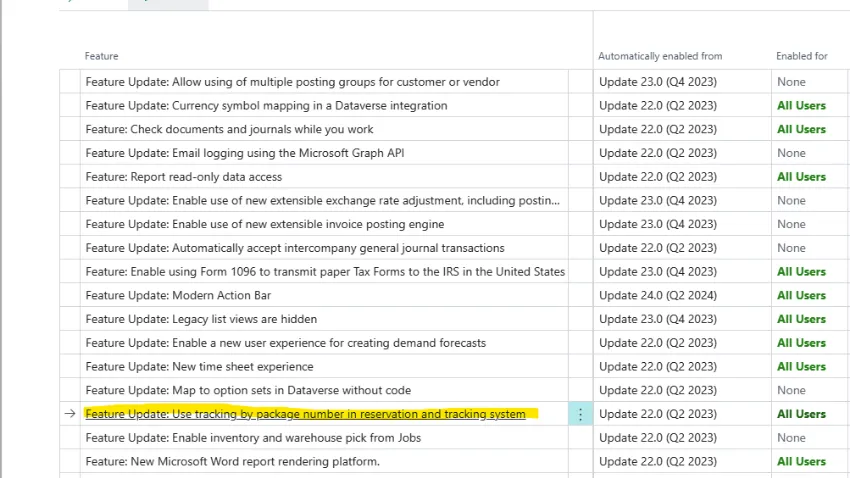
However, concurrently using all three types of item tracking will introduce complexity that is rarely required for most companies. Typically, an item is either tracked with serial or lot numbers. Package tracking is a new feature introduced in Wave 1 2021. Check that the feature is enabled on the Feature Management page here.
Item tracking and reservation entry: two tables for the same data?
As I mentioned, the item tracking functionality behind lot numbers runs on the reservation engine. However, Business Central uses two database tables to store the lot numbers. This double-table design might seem confusing, but it’s an excellent way to manage lot and reservations separately.
You can see that the source of the item tracking page where we enter the lot number information is a temporary table.
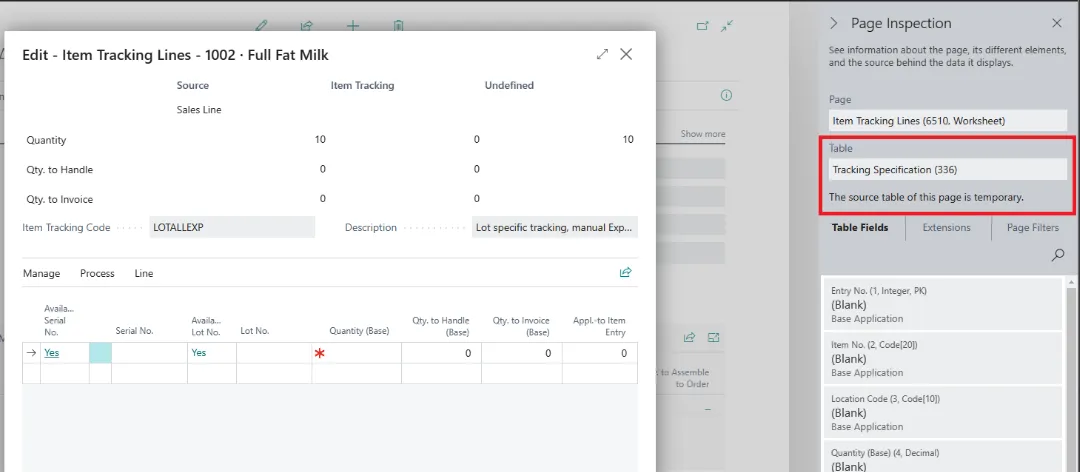
This happens because the page Item Tracking Lines gets data from two tables: When a lot number is entered for a source document line that is not handled, the data is stored in the Reservation Entry table (Table 337). However, when a source document line is handled, for example, a received purchase line, the lot number information is stored in the Tracking Specification table (Table 336).
How to set item tracking for lot numbers
Now that we have covered the basics, let’s look at setting up lot tracking for one item to see how it works.
Item tracking code
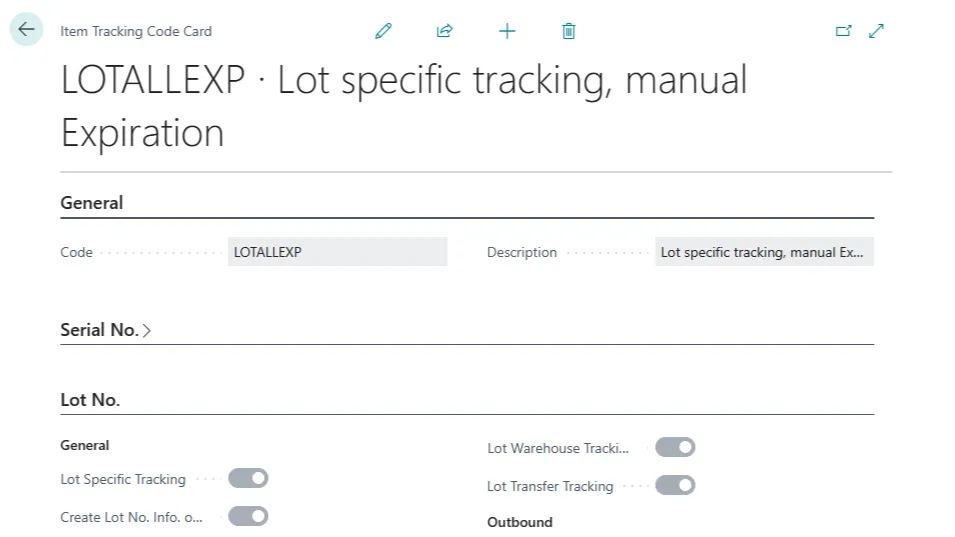
The first step to enable lot numbers is to create one or more item tracking codes. Item tracking codes define what type of tracking, Lot, Serial or Packaging, and for which transactions the lot number must exist. Open the Item Tracking Codes page here.
Though the sample data in the Cronus database includes some item tracking codes that you can use, I recommend applying some changes to ensure data consistency. The example below shows my preferred way of setting up lot numbers.
If you need end-to-end traceability using lot numbers, your setup should look like the one below. The highlighted fields are optional and depend on your configuration.
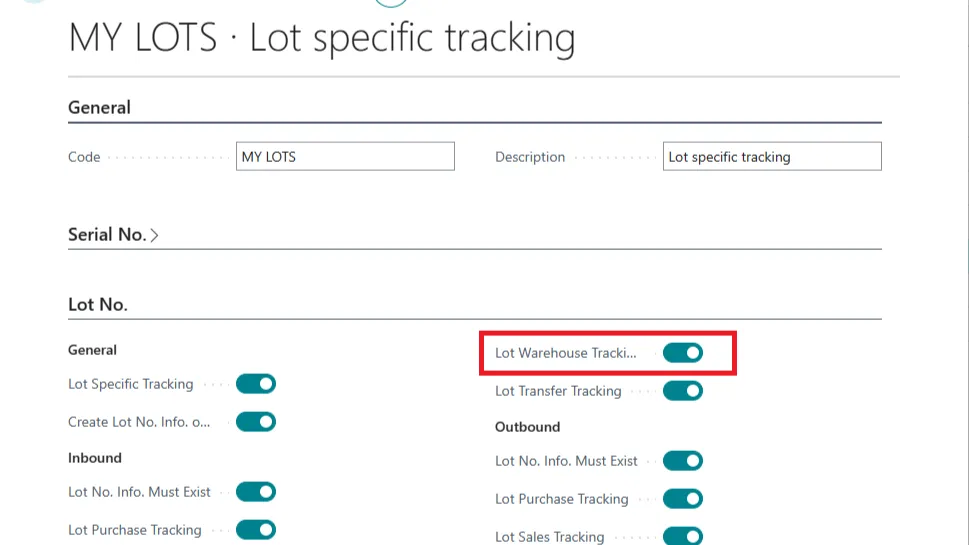
- Lot Warehouse Tracking: You can turn off this field if you don’t use WMS in Business Central.
- Use Expiration Dates: If you need the item with this lot to be tracked for expiration dates, enable this field. You can have one item tracking with expiration dates and another without.
- Require Expiration Date: I recommend enabling this option if the expiration date is on. If it’s off, the expiration date is optional.
- Strict Expiration Posting: If the field is on, you cannot post documents, ship, receive or invoice, if the item lot has passed its expiration date.
Business Central has no concept of minimum life on receipt or shipment. As of version 21, you need customisation or an extension if you want a remaining shelf-life buffer check on posting.
Add the item tracking code to the item
The next step is adding the item tracking code to the item or items you want to track with lot numbers. The field to populate is the item tracking code.
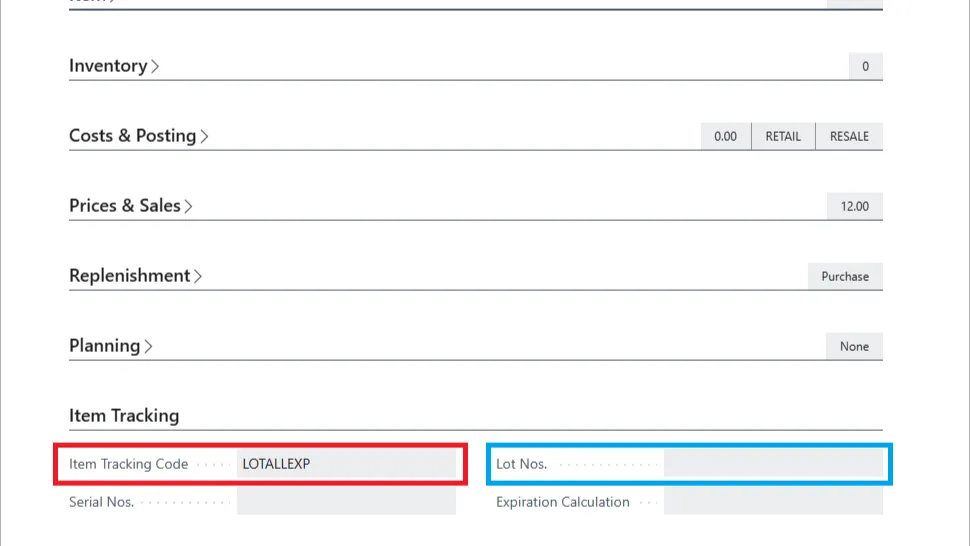
You can see that I set up my item 1002 with an item tracking code that includes the expiration date, but I left the Lot Numbers field blank.
The field Lot Nos. in the item card has a specific function to use a dedicated number sequence for system-generated lot numbers when, for example, you must create new lot numbers after a production or an assembly output. Some companies generate lot numbers automatically for the stock that they purchase.
Though this is possible, I am not a fan of this setup. Items purchased that require lot tracking already carry lot number information generated by the manufacturer. End-to-end traceability means capturing the manufacturer’s lot information. Although generating lot numbers in Business Central is possible, the risk of losing traceability is high when a company ignores the manufacturer’s lot numbers and uses its own.
If we want the ability to generate and assign lot numbers automatically, we need to enter a No. Series code in Lot Nos. field.
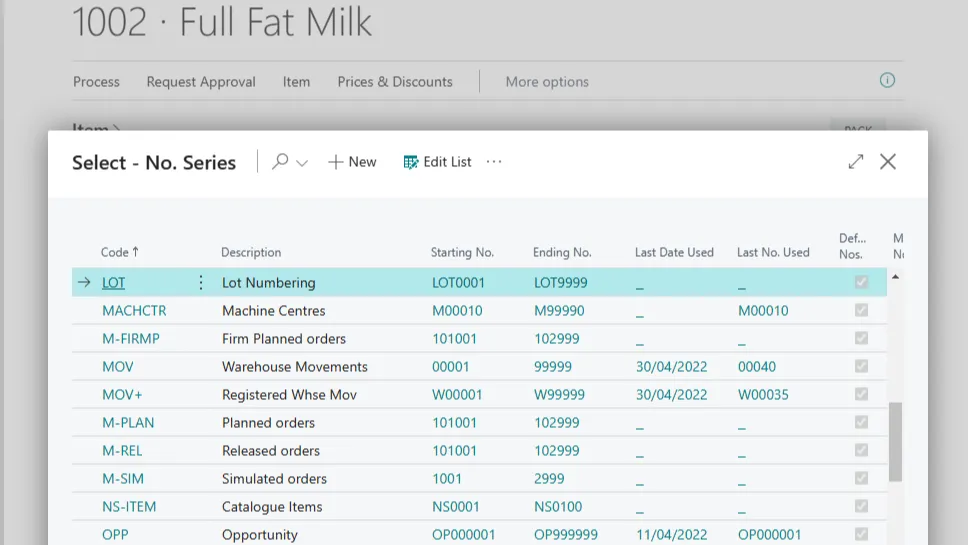
The setup is complete; now we can receive stock and assign lot numbers.
How to assign lot numbers to inbound transactions
Inbound transactions are the first place where we need to enter lot numbers. Let’s create a purchase order for item 1002 and assign a lot number.
As I already mentioned, lot numbers are stored in a separate table. Therefore, the lot number information does not appear in the source document lines. We need to find the item tracking lines in the document line menu to update the lot number on a purchase document. Clicking on the Item Tracking Lines will open the item tracking details.
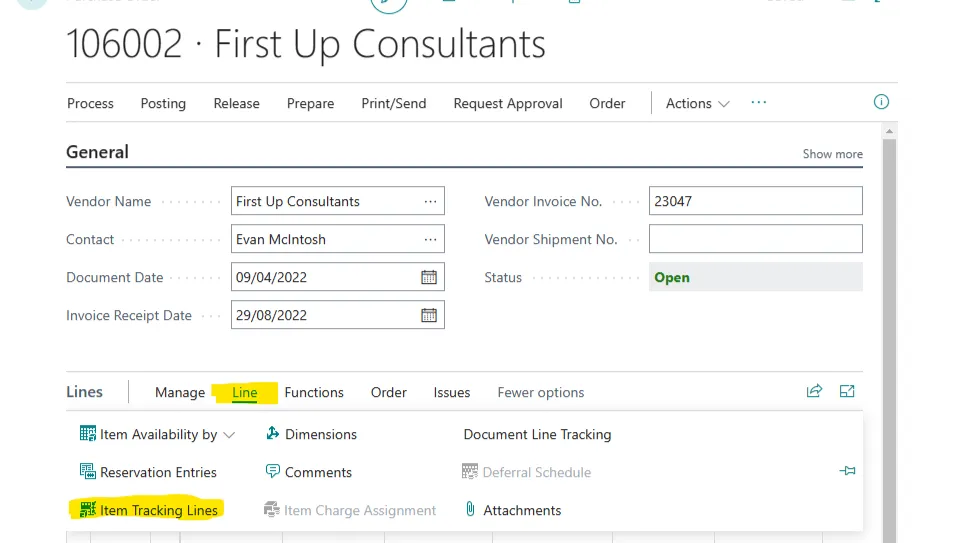
One of the most common errors users get when they click on the Item Tracking Line is this: “Item Tracking Code must have a value in Item: No.=XXXX. It cannot be zero or empty.” This error message can be misleading, and users tend to read this error as a missing setup. However, that error means the item tracking code field of the item in the document line is empty. Therefore, Business Central cannot open the item tracking page from that purchase line.
If you followed the instructions and got the same error, go back to the item card and check that the item tracking line had a code in the item card.
If the setup is correct, you will see the item tracking details page; let’s look at this page and see what fields it contains and their purpose.
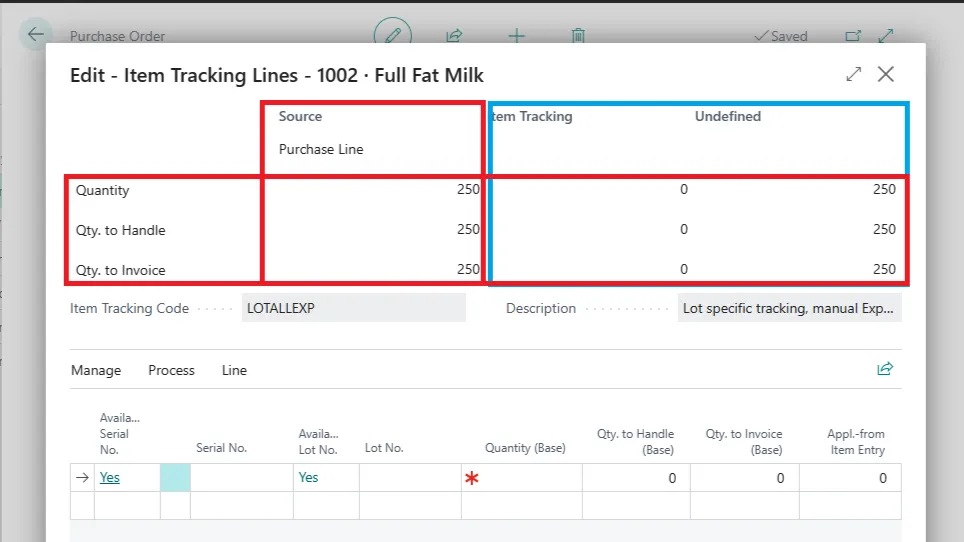
The page header contains the details of the source document line, and it shows the total line quantity in the base unit of measure. In my example, I have 250 packs of item 1002.
On the left side of the page, highlighted in red, is the source of the item tracking, a Purchase line. Below, three lines show the total purchase line quantity, the quantity to handle and the quantity to invoice. These numbers are the same in my example because this is a new order. We will see later how the quantities change as I part-receive the order line.
On the right side, the item tracking quantities are highlighted in blue. Because no item tracking details are entered, the tracking totals show 0, and the undefined totals show 250.
The lot numbers are entered in the page lines.
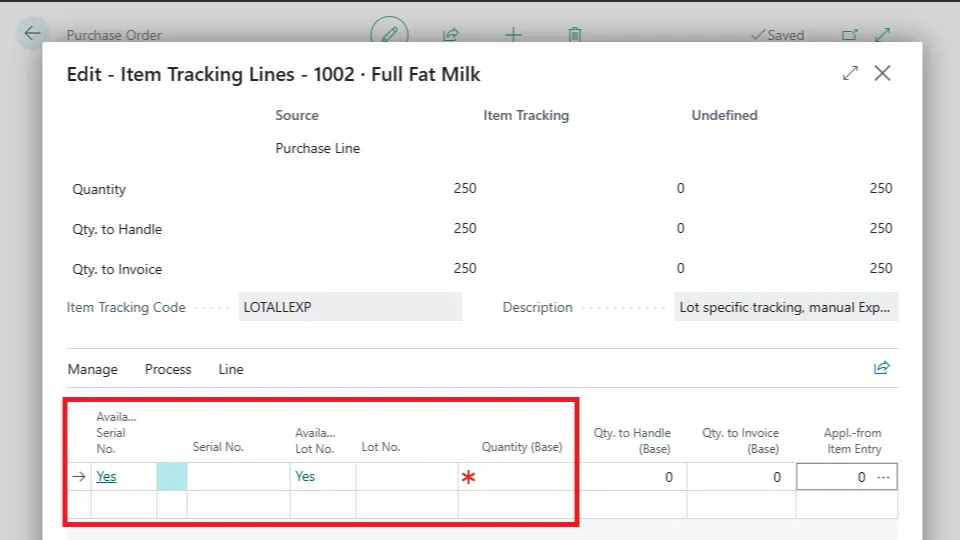
Because the item tracking page handles serial and lot numbers, serial number fields always show on the page. However, if the item is not set up for serial numbers, trying to update these fields will result in an error message.
Assign lot numbers to source documents
We can now assign lot numbers to our purchase line. Here we have two options:
- Generate lot numbers automatically
- Type the lot number
The action to assign lot numbers automatically is Assign Lot No., under the Process menu.
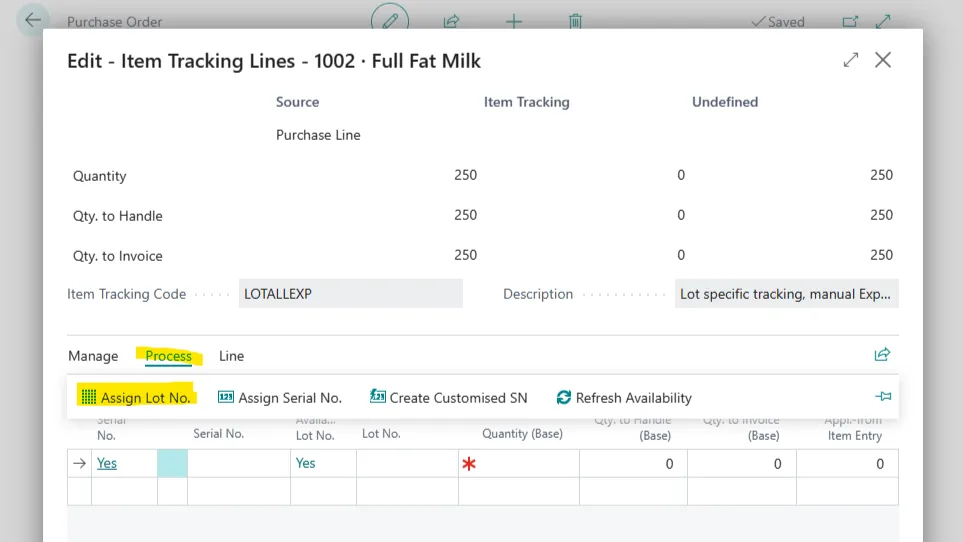
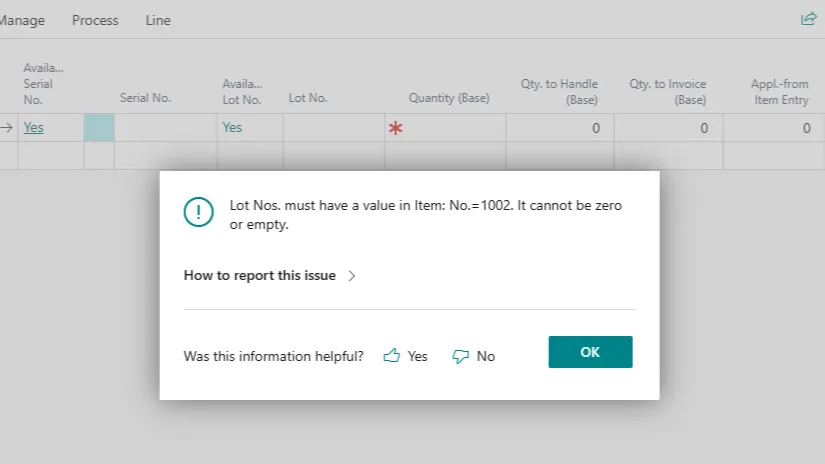
We can get Business Central to generate lot numbers automatically if the Lot Nos. field in the item card contains a value from the No. Series. If not, we will get an error.
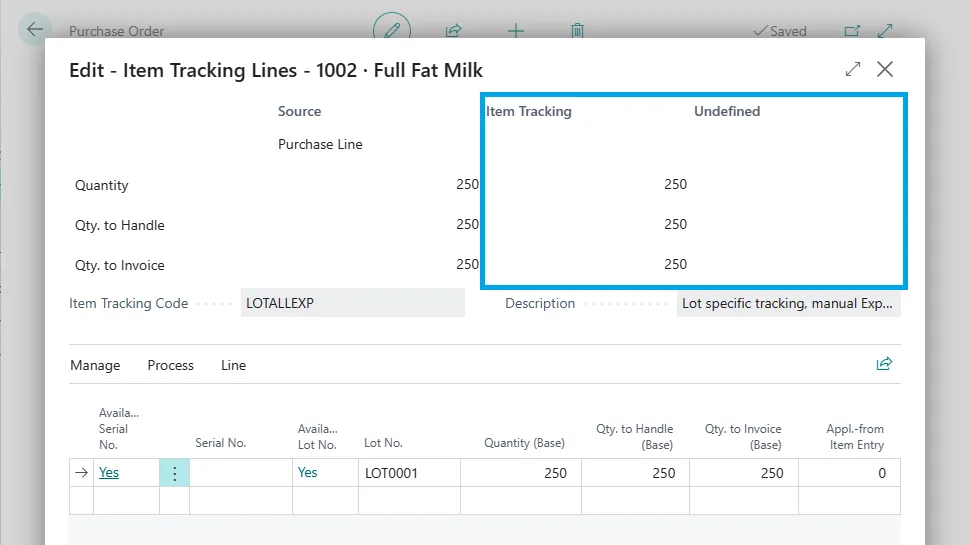
If the setup is correct, Business Central will generate the lot number and fill in the quantity from the source document. Note that the header totals are updated.
The main benefit of having a separate table for item tracking is that we can enter many lot numbers for the same source document. If we do that, the totals will also be updated.
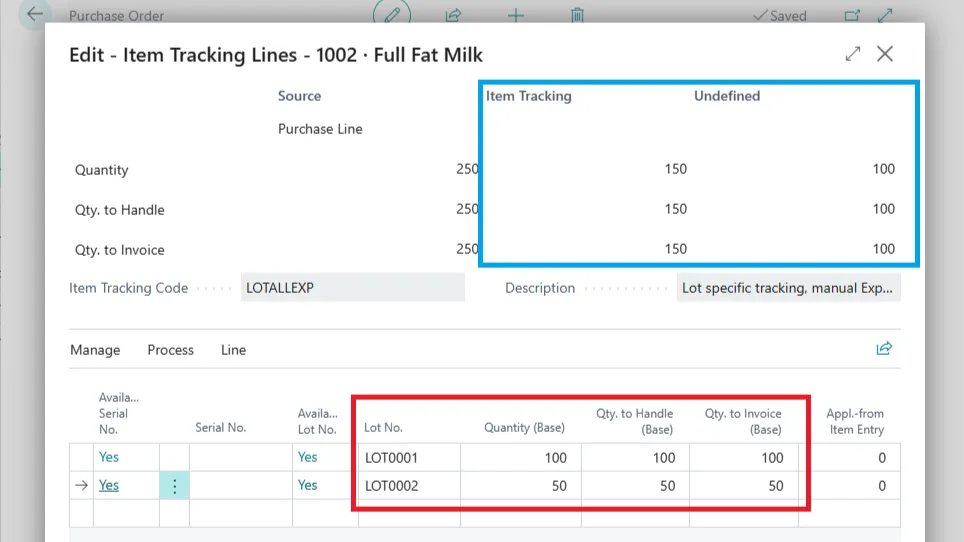
We can now add the expiration date to our lot numbers. Surprisingly, the field is hidden, and we need to personalise the page to see it.
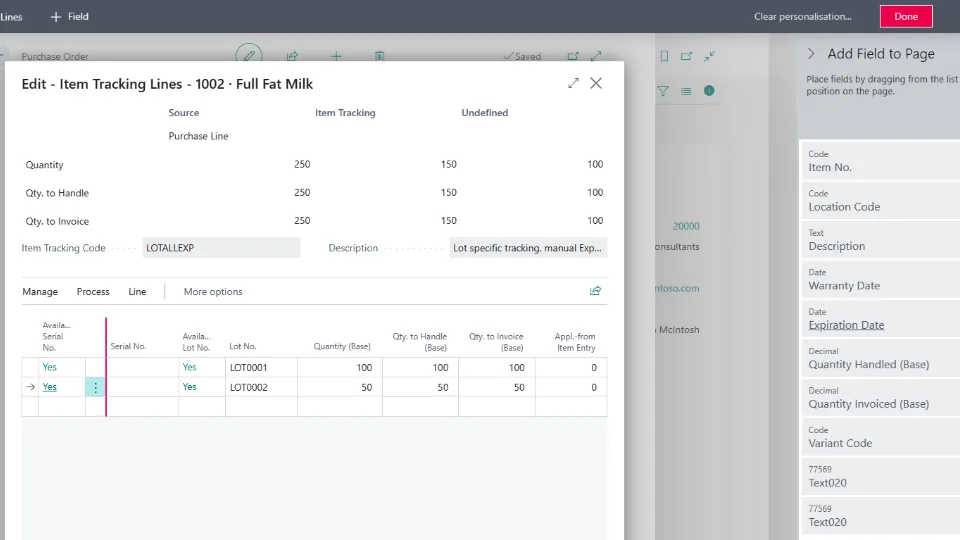
Now, we can add the expiration date to the item tracking lines. When the entire quantity of the source document is tracked with lot numbers, we can post the document line.
Note that if an item requires lot tracking, we cannot post the document until the total quantity is tracked.
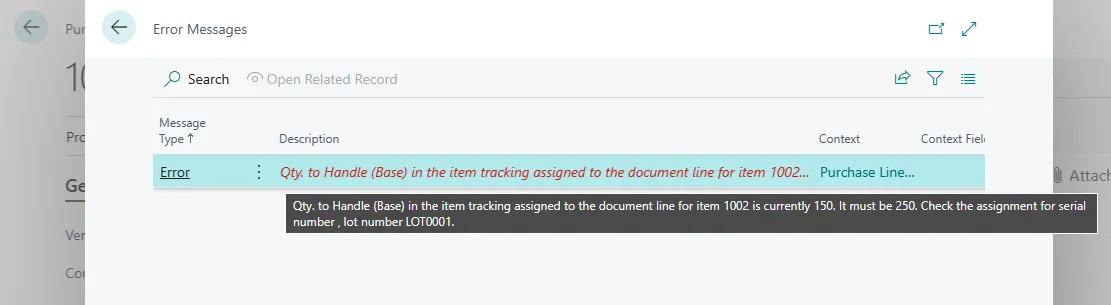
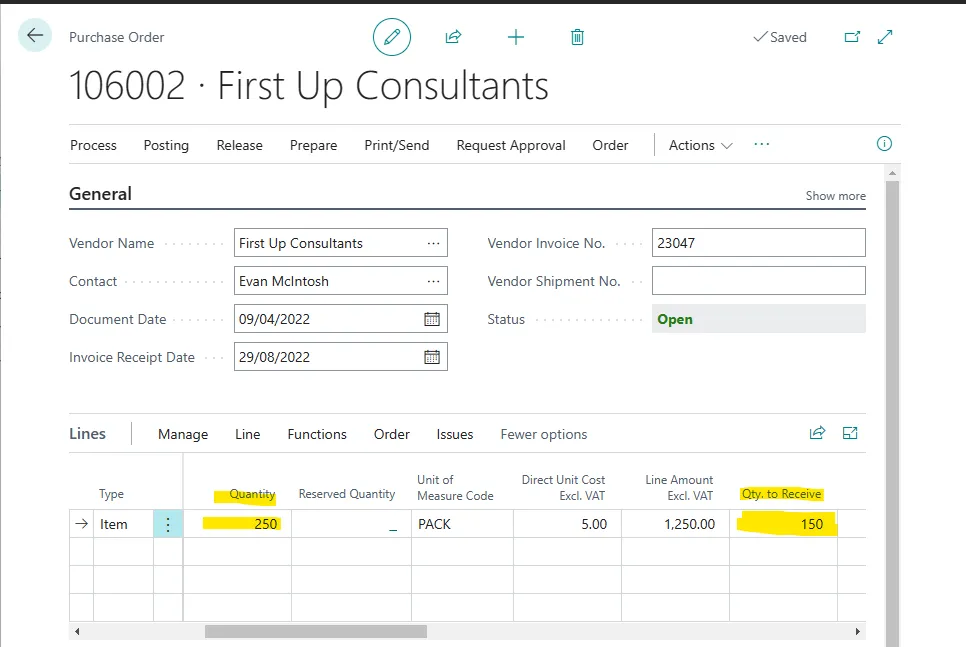
However, we can part-receive the document line by updating the quantity to receive to match the quantity in the item tracking lines.
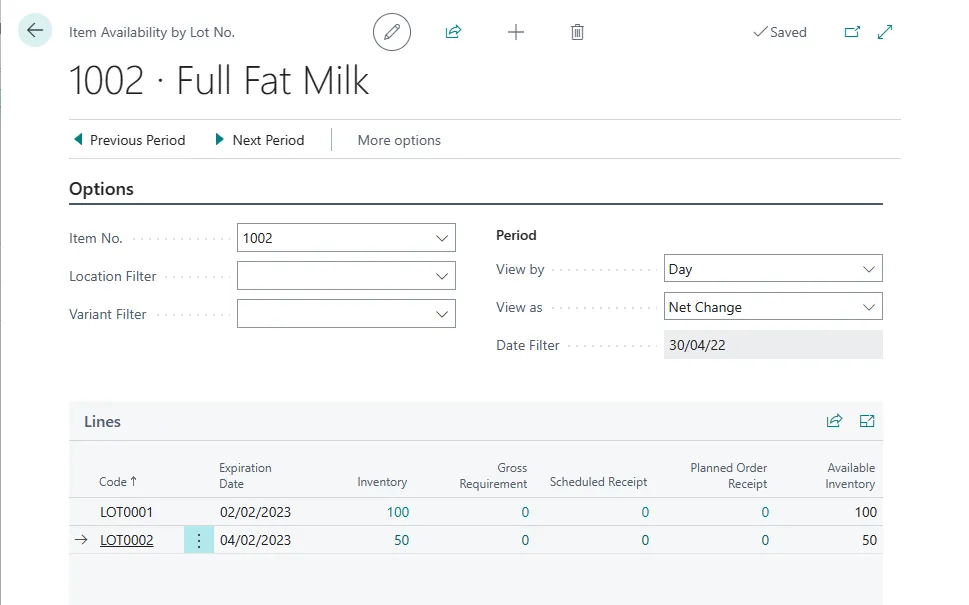
After receiving the 150 units of my item 1002, I can see the availability by lot for my item.
Working with WMS: assign lot numbers to warehouse activities
Though lot numbers apply to inventory transactions and not warehouse activities, Business Central allows the assignment of lot numbers to warehouse document lines following the process described above.
The details are passed to the warehouse receipt if item tracking lines exist in the source document lines. I have a warehouse receipt created for a purchase order in the example below. The line has my item 1002, the full-fat milk that requires a lot number and expiration date. I have entered the lot into the purchase line, and if I open the item tracking lines page, I see the lot information.
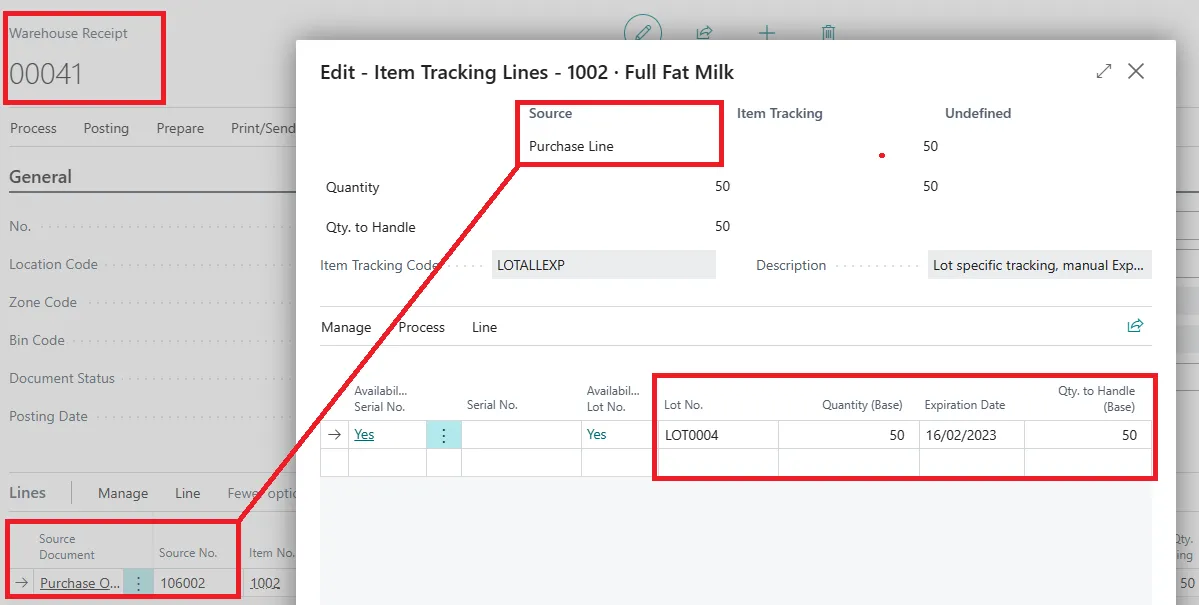
Note that the item tracking lines are still linked to the purchase line, not the warehouse receipt line. This logic allows warehouse users to update the lot numbers before receiving goods. This is useful when the manufacturer sends lot tracking ahead of the delivery, for example, through a packing list.
Users can still update the lot numbers from the warehouse receipt if required. In this case, Business Central will still update the source document without the need to amend the purchase order.
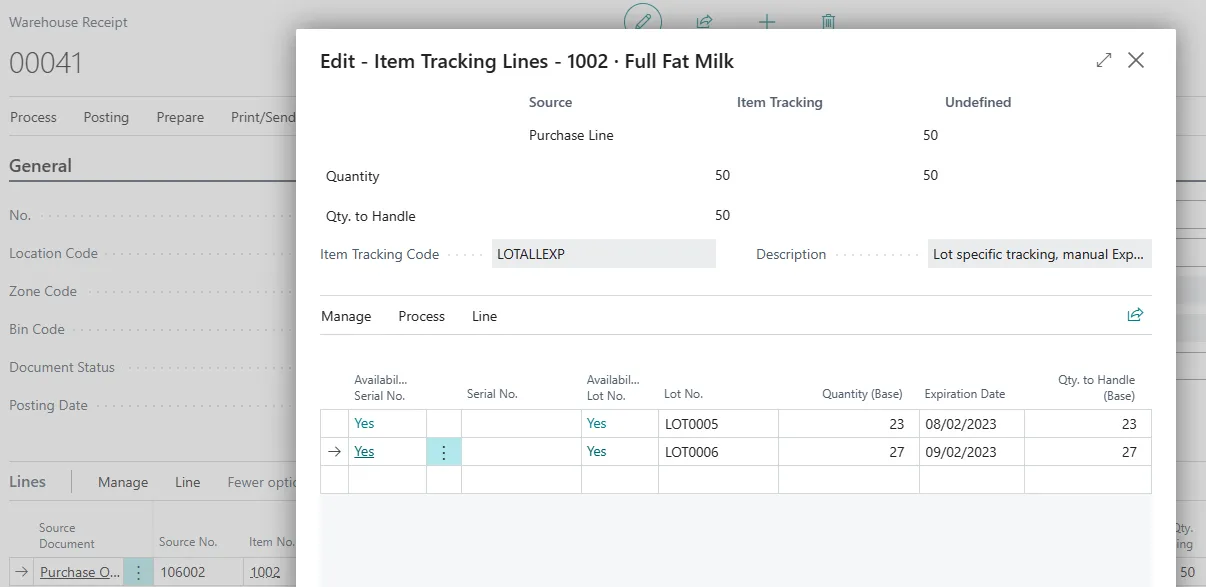
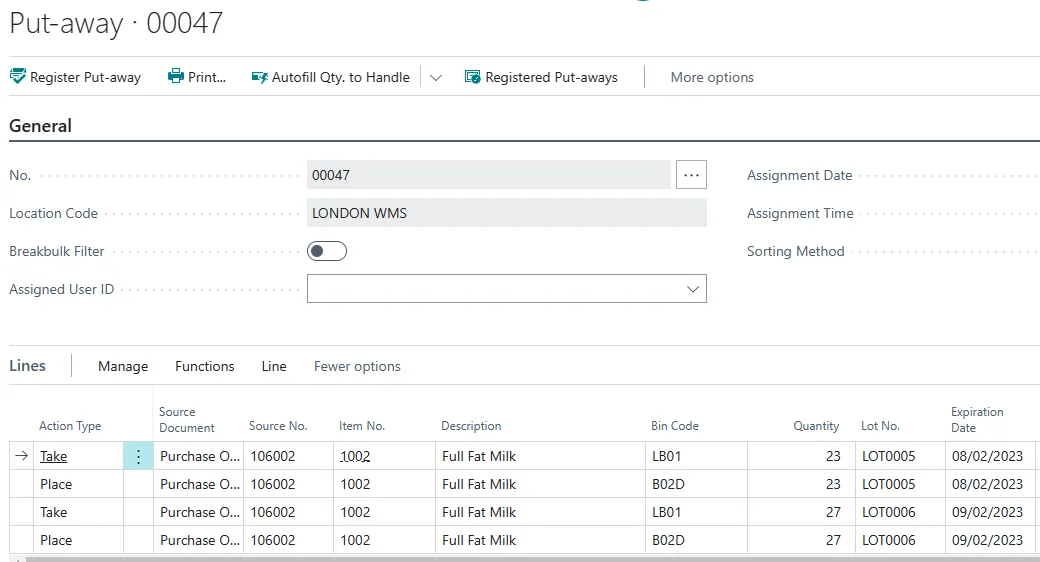
The main difference with advanced warehousing is that warehouse documents, line put-aways, and picks will split the source document using lot number details and show the item tracking in the lines. In the example below, I have received the lines and created a put away for the 150 units of item 1002 that are tracked with two lots. Business Central creates a put away with one line per lot.
How to assign lot numbers to outbound transactions
The process to assign lot numbers to outbound transactions is similar to the inbound except for one key functionality: we don’t create lot numbers for outbound transactions. We can only select existing lots.
Assign lot numbers to source documents
The item tracking functionality for outbound transactions is based on the same tables and pages. Therefore, now that I have stock of my item 1002, I can raise an order and use the item tracking in the sales lines to select a lot number.
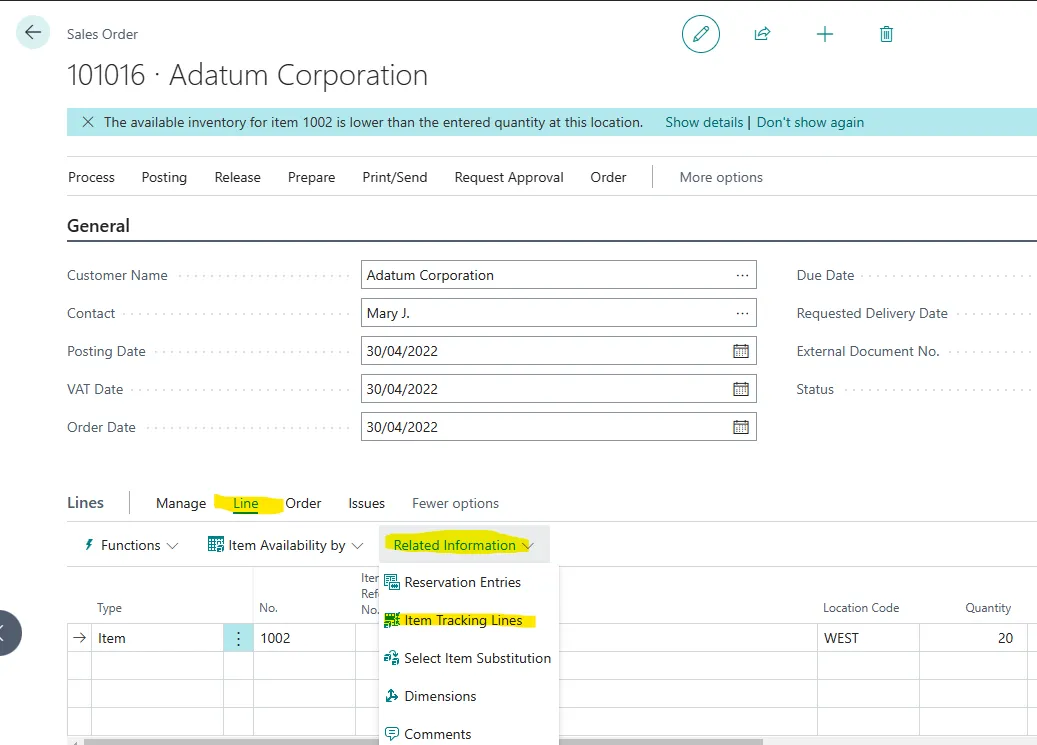
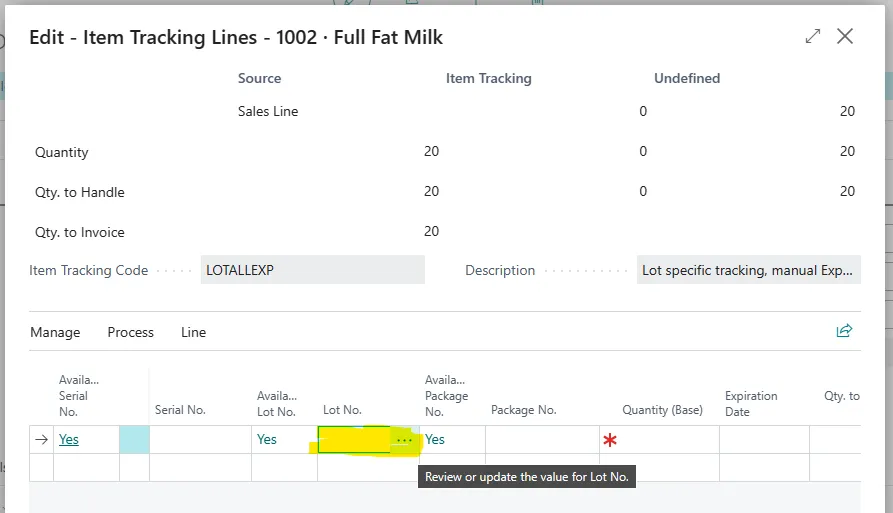
The item tracking lines page will open; this time, the source is the sales line, and we can choose the lot numbers by clinking on the three dots in the field.
When we do that, Business Central opens a page with the list of lot numbers and flow fields showing total quantity by lot and availability.
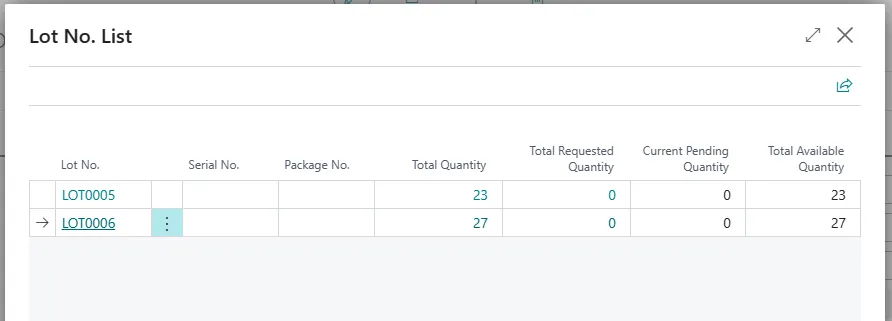
Note: this page shows a filtered view using the location code on the sales lines. Lot numbers of stock available in other locations will not show here.
Though selecting available lots should be the default choice for sales, Business Central allows the creation of lot numbers even for outbound transactions. This functionality is rarely used, except for two scenarios:
- The item tracking code is only used for inbound; therefore, the existing stock will have no lot numbers, and new lots will be created for sales only.
- We want to reserve future stock for the sales line and create a lot number that we will use to produce new stock to fulfil the order.
Though both examples are supported in Business Central, I rarely recommend creating lot numbers to link existing demand to future supply. There is a better way to handle reservations for lot-tracked items; using both comes with added complexity. For more details, see the Microsoft article on design details here: https://learn.microsoft.com/en-gb/dynamics365/business-central/design-details-item-tracking-and-reservations.
Working with WMS: assign lot numbers to warehouse activities
Like an inbound transaction, we can assign lot numbers to a source document like a sales order and see the lot numbers in the warehouse activity. However, there is a critical difference in how the item tracking is managed here.
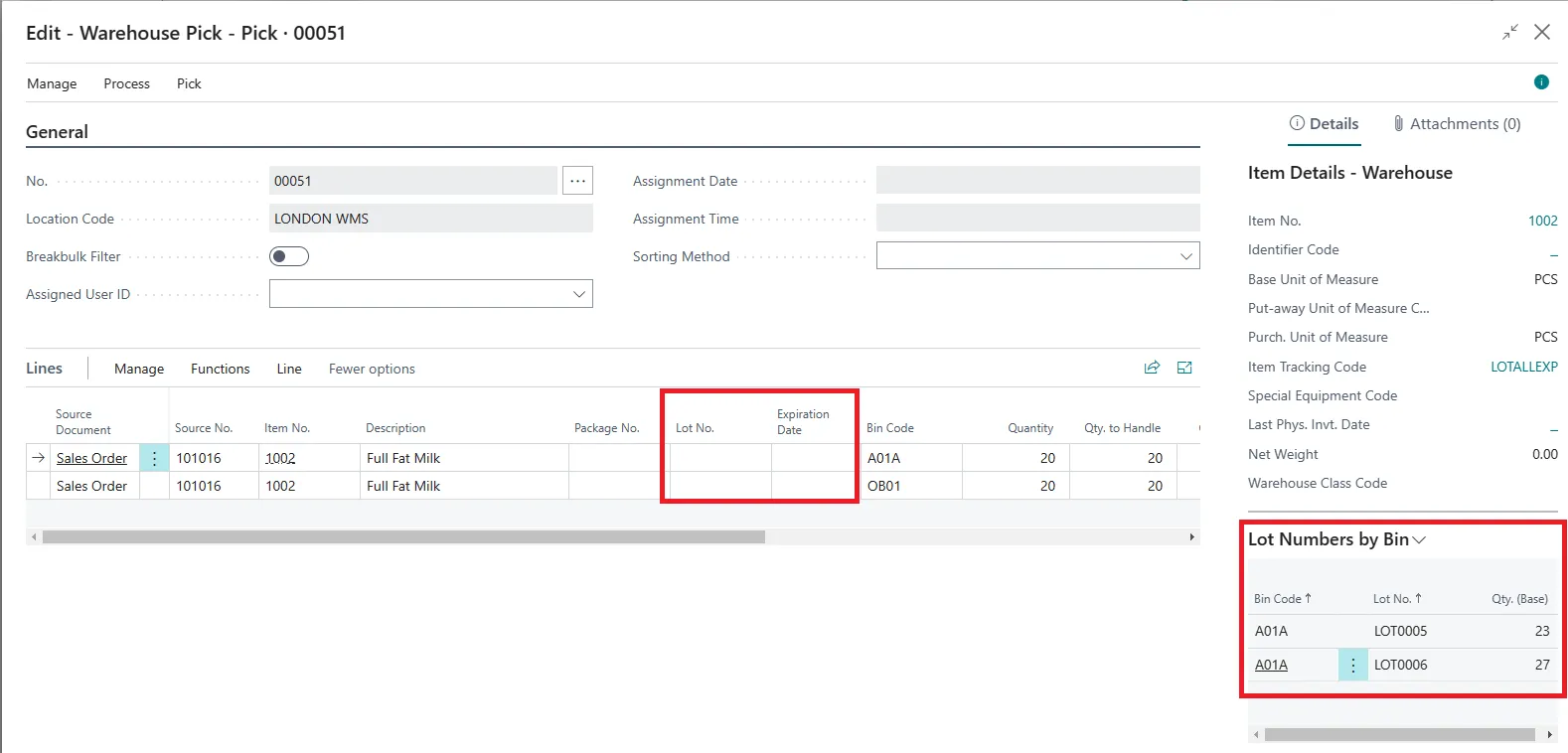
If the lot number is not assigned to the source document, Business Central will not allow entering lot numbers in a warehouse shipment. Only users picking stock can update the lot number when picking.
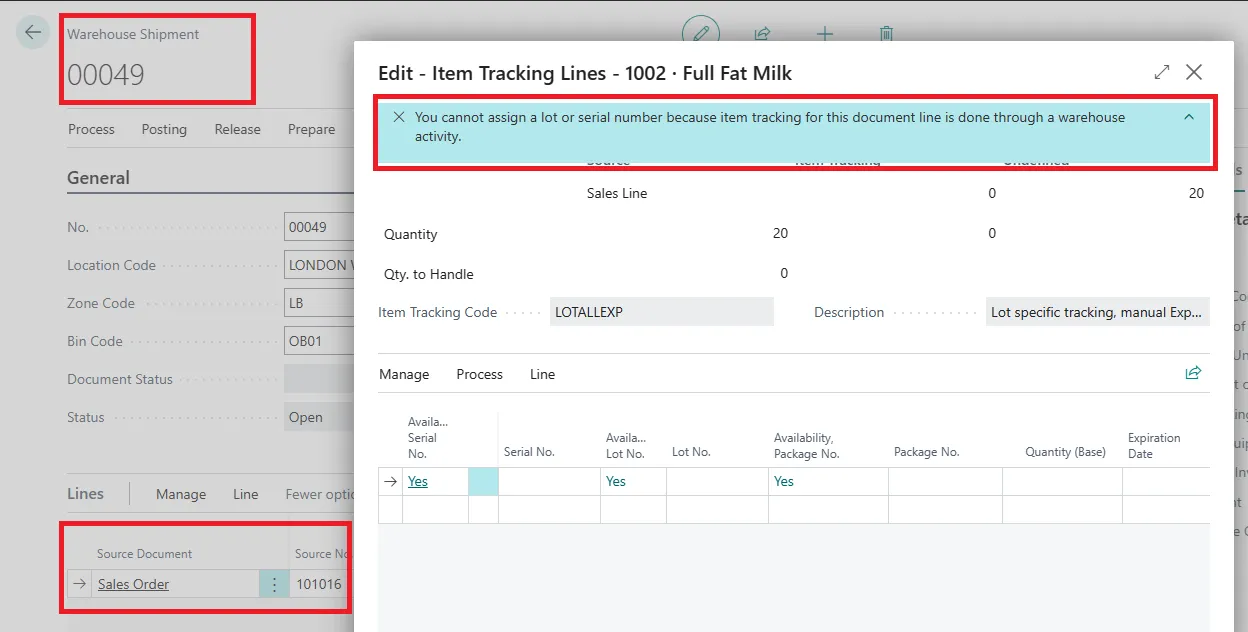
The user cannot select the lot number without item tracking details when picking stock. Moreover, they can see the availability of lots by bin code.
Assign lot numbers automatically with FEFO
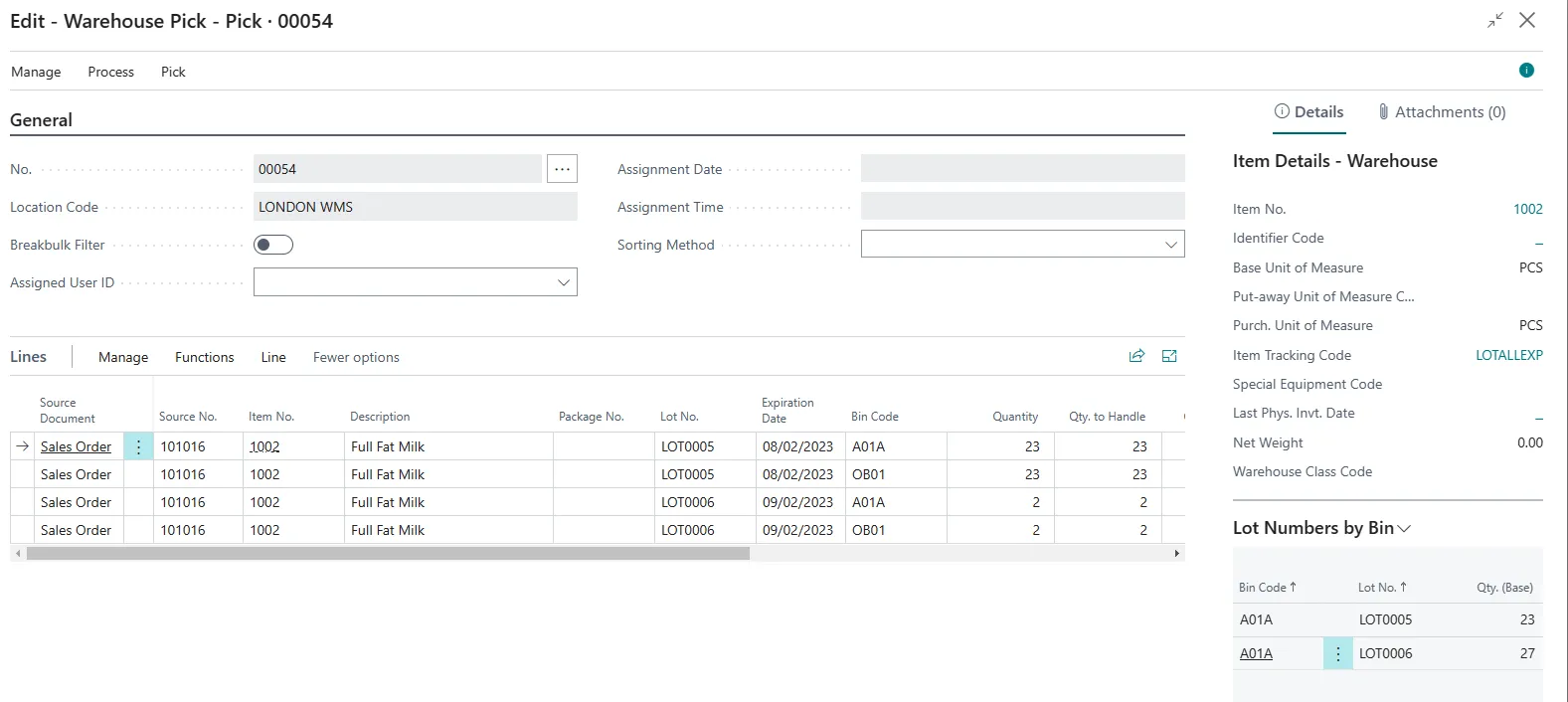
One of the main features I recommend to my clients who need lot numbers is enabling picking by FEFO (First Expire, First Out). The feature is enabled in the location card, and it can even split picking lines if a source document line cannot be entirely fulfilled with one lot.
As an example, I have increased the quantity of my order to 25, and since I have a quantity of 23 of one lot and 27 of another, even if both lots are in the same bin, Business Central will split the pick line to use the lot that expires first.
Change lot numbers with reclassification journals
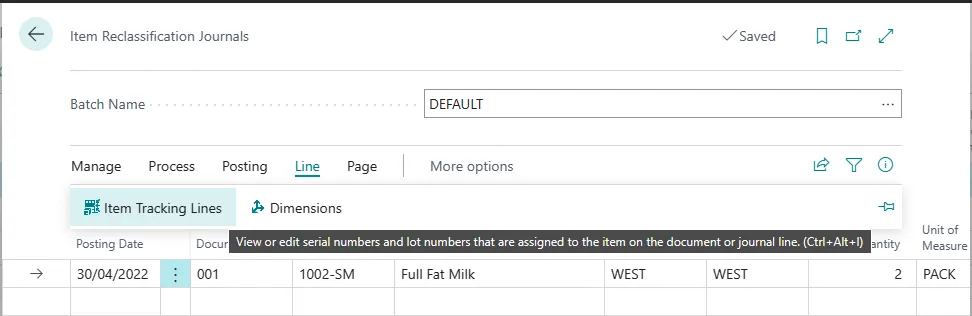
Lot numbers for existing inventory can be changed through an item reclassification journal or a warehouse reclassification journal for locations with advanced warehousing.
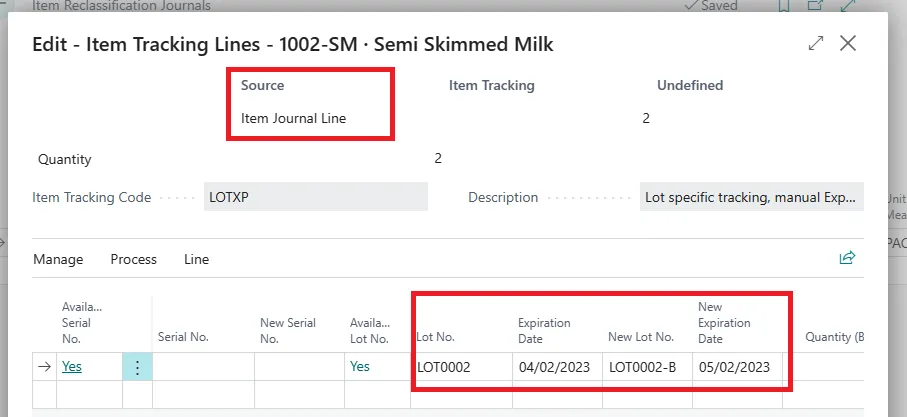
As for inbound and outbound transactions, we can find the item tracking line page from the menu of the reclass journal and update the tracking details.
The main difference from the same page that opens for outbound or inbound transactions is that we can select an existing lot and add a new lot number or expiration date. We can always reclass part of the lot, not the entire quantity. In the example below, I have changed only two units of item 1002-SM and given a new lot number and expiration date.
Key takeaways
- Lot numbers can help with end-to-end traceability.
- The functionality uses item tracking codes and works on the reservation engine, like serial numbers and packaging tracking.
- Only inventory transactions can carry lot number information, but users can access the details from warehouse documents, too.
- Using lot numbers for reservations is possible, but it is not recommended.
In a future post, I will cover more on lot numbers like assembly and production order and the traceability page that shows the entire lifecycle of an item and lot from the purchase to the sale.