Business Central CRM
Business Central includes CRM. Microsoft calls that area relationship management: contacts, segments, campaigns, interactions and opportunities. Dynamics 365 Sales is a different app.
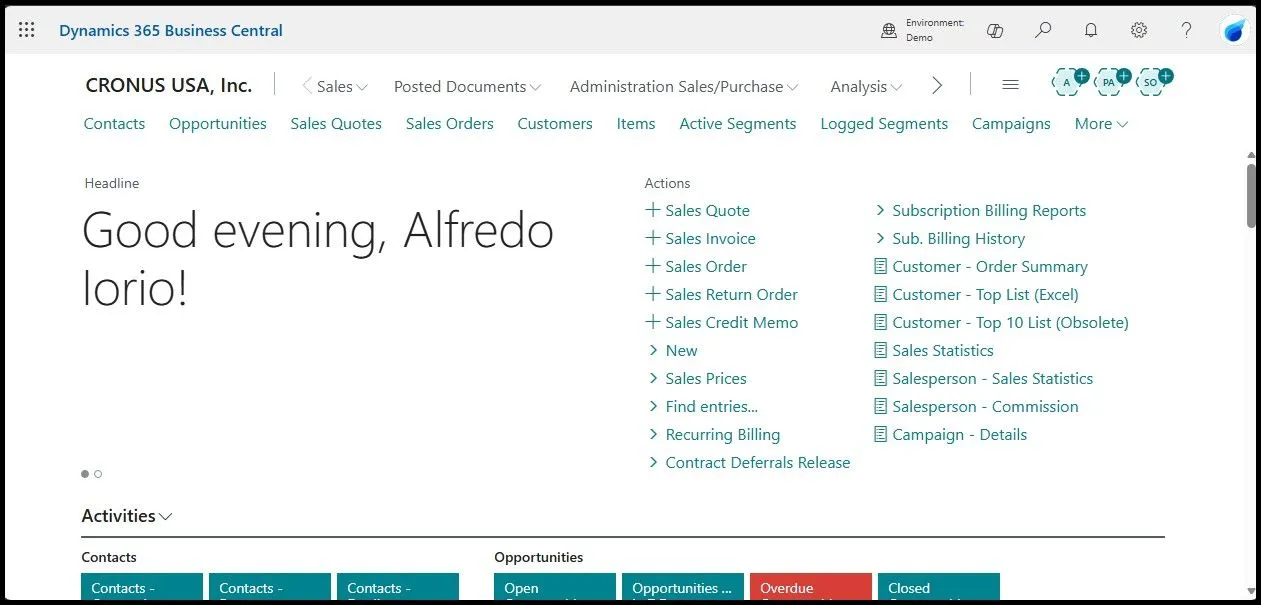
How contacts fit in the CRM module
The central entity that governs Business Central CRM is the contact record, which represents either a person or a company with whom the organisation maintains a business relationship.
Since contacts support both customers and vendors, you will often find references to a more generic Relationship Management in BC, rather than the more conventional CRM.
However, if you want to use the CRM features of Business Central, such as segments, interactions, campaigns and sales quotes, Contacts are your primary data entity.
Contacts exist independently of customers and vendors, but a business relation code links each contact to its customer or vendor record. That link means you maintain the details once on the contact, and they apply to the related orders and invoices instead of being re-keyed.
To learn more about contacts, check my other post: All About Contacts in Dynamics 365 Business Central.
Use segments to categorise contacts
Segments enable sales and marketing teams to filter and group contacts before creating interactions, opportunities or even running campaigns.
Contacts can be assigned to a segment manually by typing into the segment lines or using the Add Contacts routine, which will use filters to pull down contacts into the segment lines in bulk.
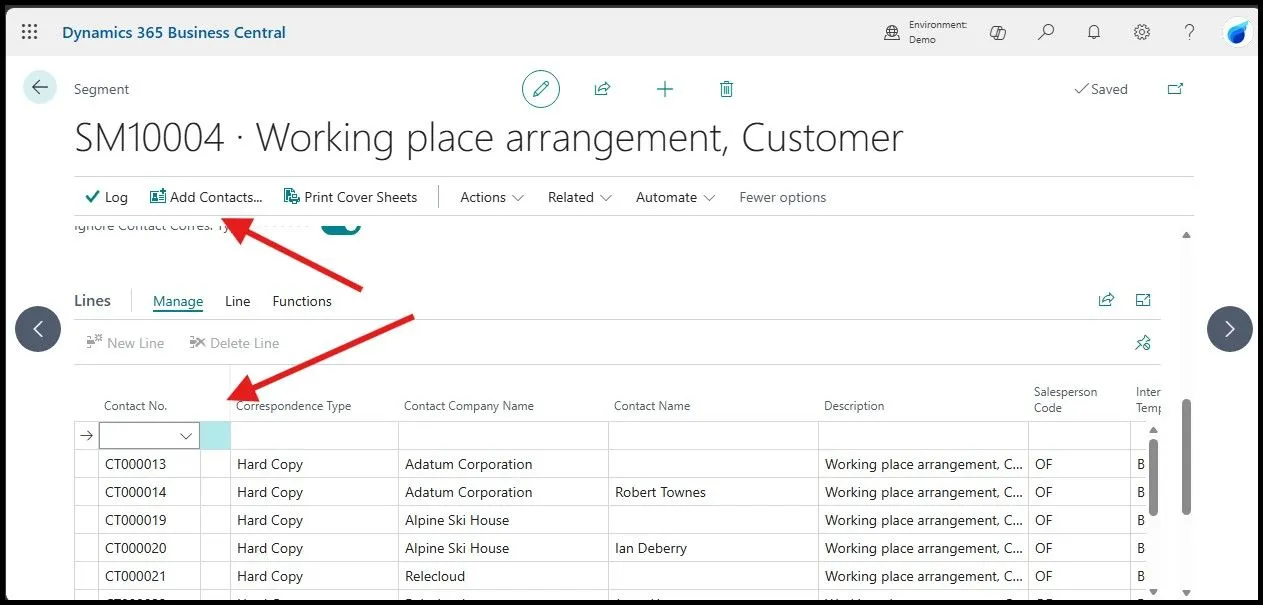
When running the Add Contacts action, the filter options available allow you to select contacts by dynamic values such as sales volume or number of purchases over time.
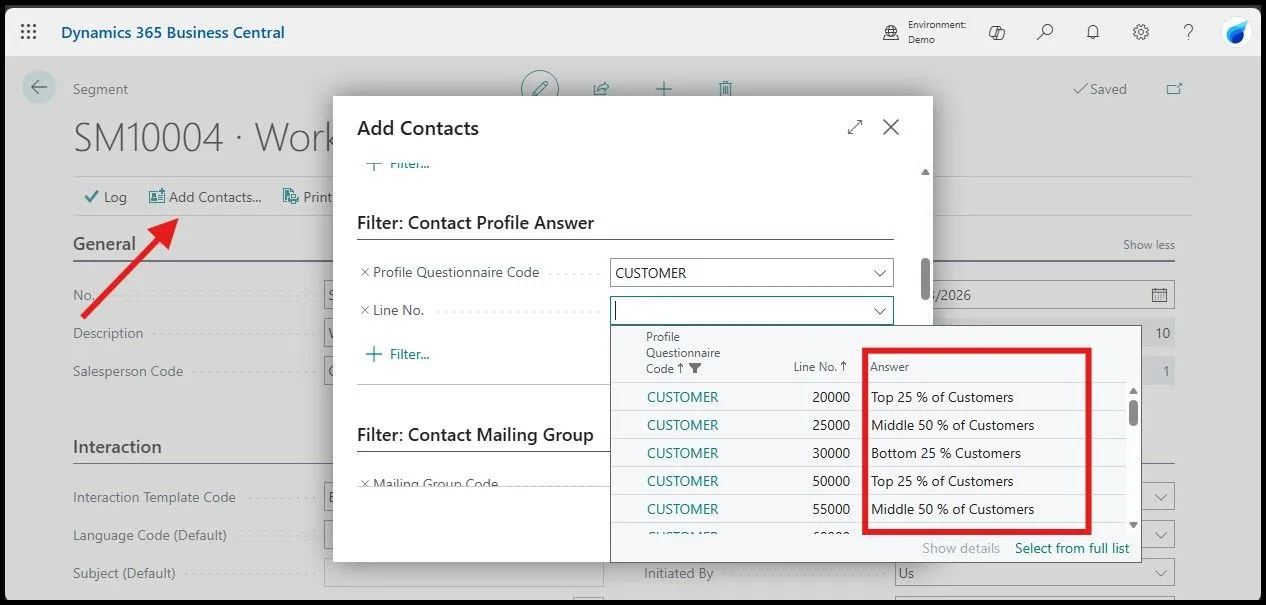
Business Central can automatically track specific values used to segment contacts via Questionnaires.
What are questionnaires and how to use them
Questionnaires in Business Central are a list of questions and answers arranged by contact type, such as Person, Company or Customer.
Questions can be free text, such as number of employees or the contact’s industry, but can also be classified automatically using one of the six Customer Classification Fields:
- Sales: Net Sales value of posted sales invoices
- Profit: The gross profit on posted sales invoices
- Sales Frequency (Invoice/Year): Number of posted sales invoices per year
- Discount (%): Total discount % (Not discount amount), across all posted sales invoices
- Average Overdue (Day): Number of days between due date and collected payment.
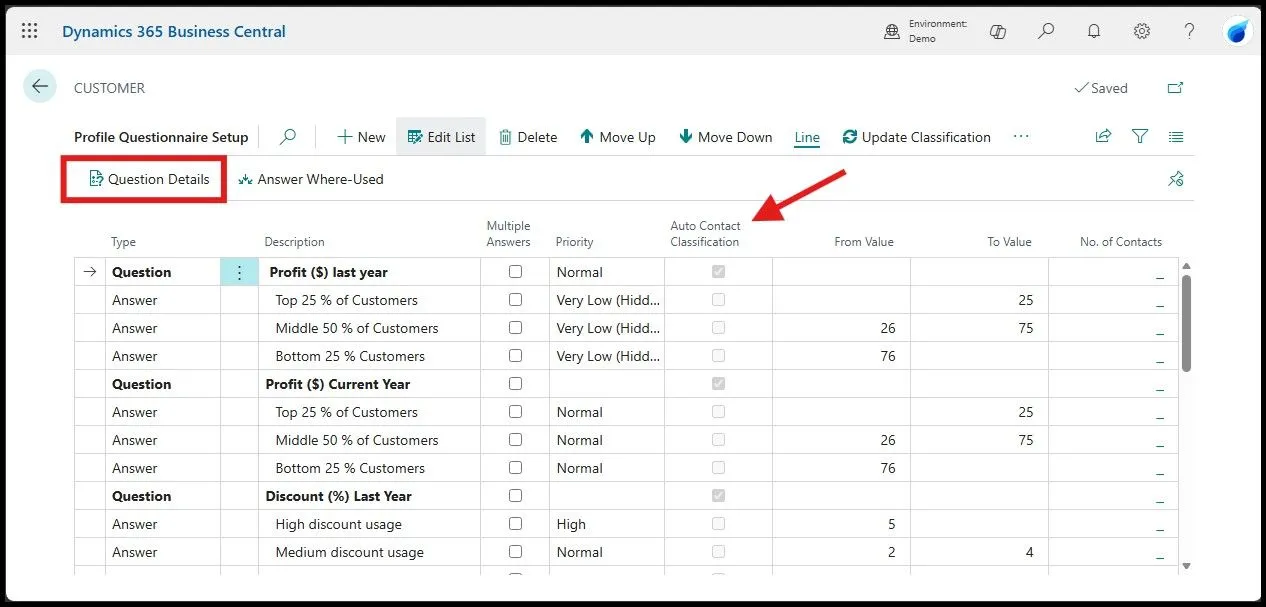
In the picture below, you can see a Profile Question Detail page with the options. Note that the page includes a Vendor Classification Field too; this shows that in BC, relationship management, and segments can be used for vendors as well as for customers.
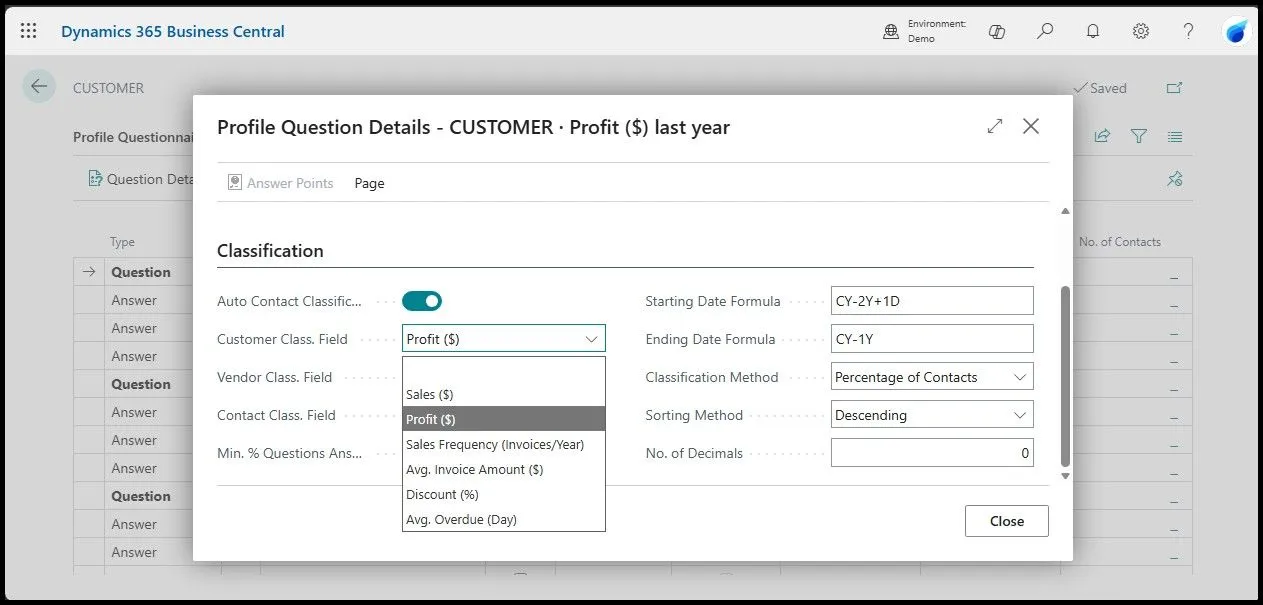
For each question, Business Central allows one or more answers. Answers related to automatic classifications have a From and To Value that allows users to set up a range of values for segmentations. Free-text answers have their value stored in the description field.
Once the questionnaire is ready, users can run the Update Classification action on the Profile Questionnaire setup page to update the automatic classification. Free-text questions must be filled in using the Profile action on the Contact card.
Interactions and interaction templates
Interaction templates are the marketing collateral that organisations use to interact with prospects, leads and customers. Interactions in Business Central are divided into groups for reporting purposes; the setup is on the Interaction template.
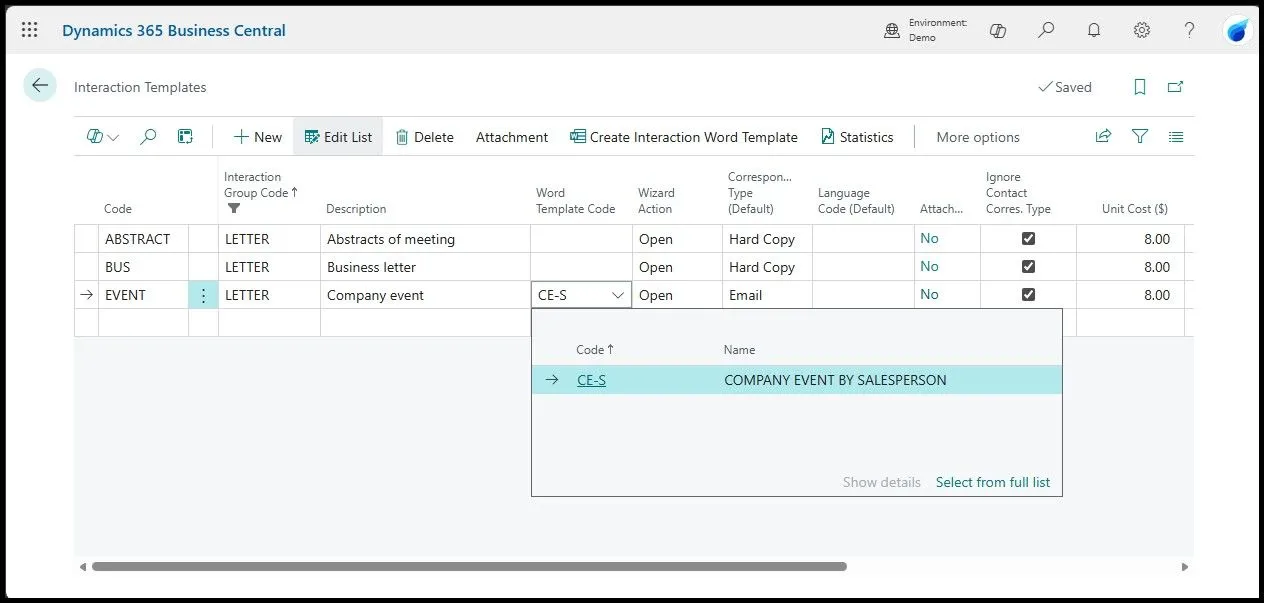
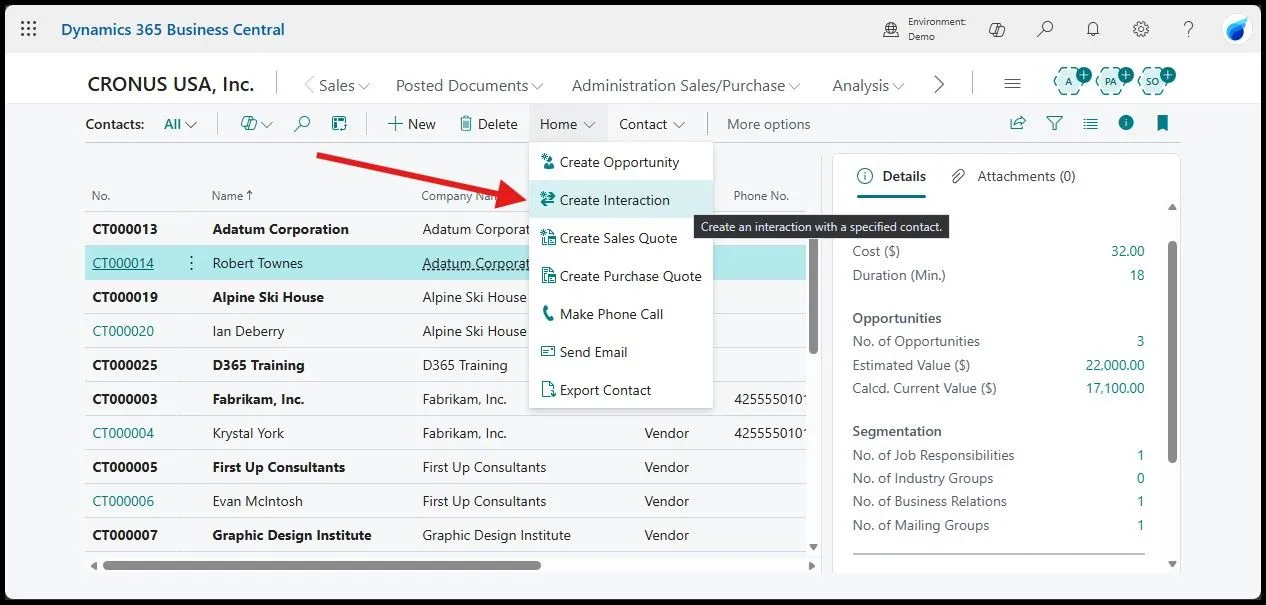
An interaction template can be linked to a Word Template that stores data and Merge Fields that users can add to the template. Interaction templates are used when users create an interaction for contacts using the Create Interaction action on the contact card.
How to create opportunities
Contacts or customers who express interest in a product or a service form the organisation pipeline; in Business Central, the process starts with an Opportunity.
The Opportunity card identifies a potential deal with an estimated revenue and an expected close date and it is linked to a sales cycle that defines the development phases configured by administrators and must mirror the organisation’s sales qualification process.
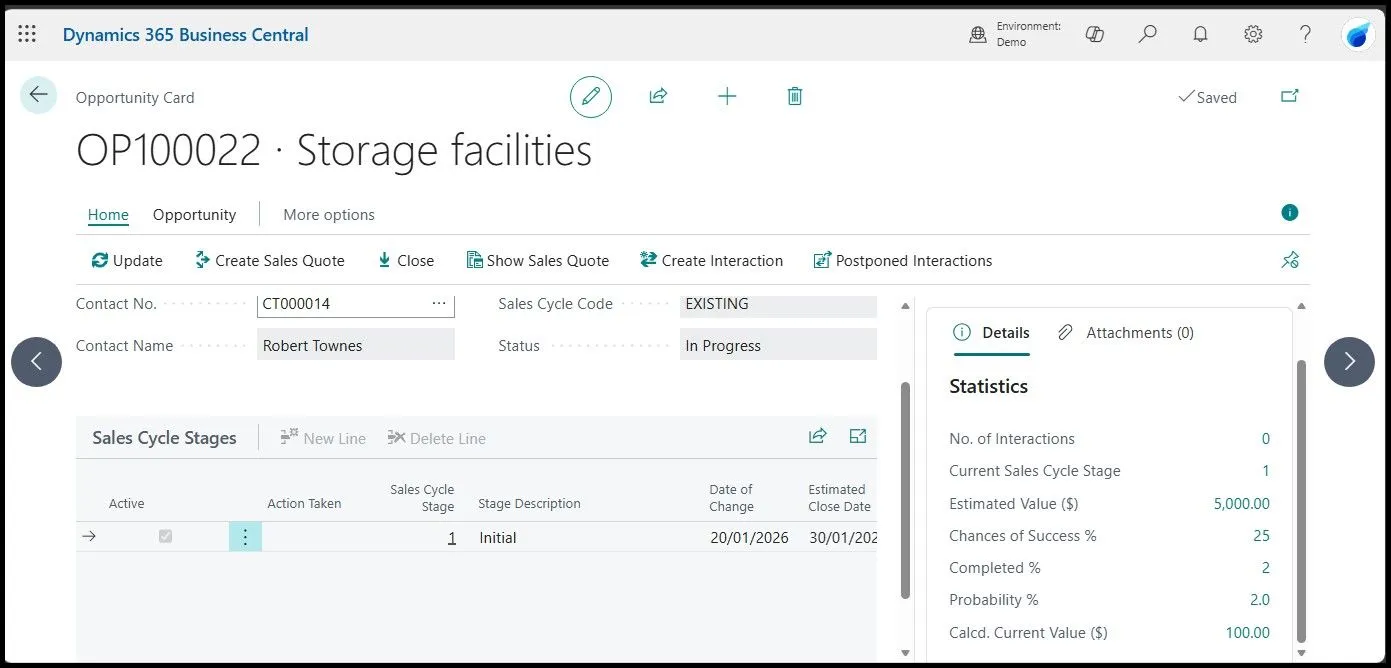
An opportunity in BC does not include the products or services the prospect might be interested in; therefore, the estimated value of the deal is a manual entry.
A client of mine once asked me if they could add items to the opportunity card via customisation. That is technically possible via an extension, but I rarely recommend this approach. If you need to track items or services in your sales process, you should use sales quotes instead of opportunities.
If your team must use items in opportunities and cannot use sales quotes as a workaround, Business Central’s CRM might not be a good fit for your organisation, and the costs of modifying the system using custom development will likely exceed the costs required to implement D365 Sales, where you can add products and use sales prices on opportunities.
Sales cycles and stages setup
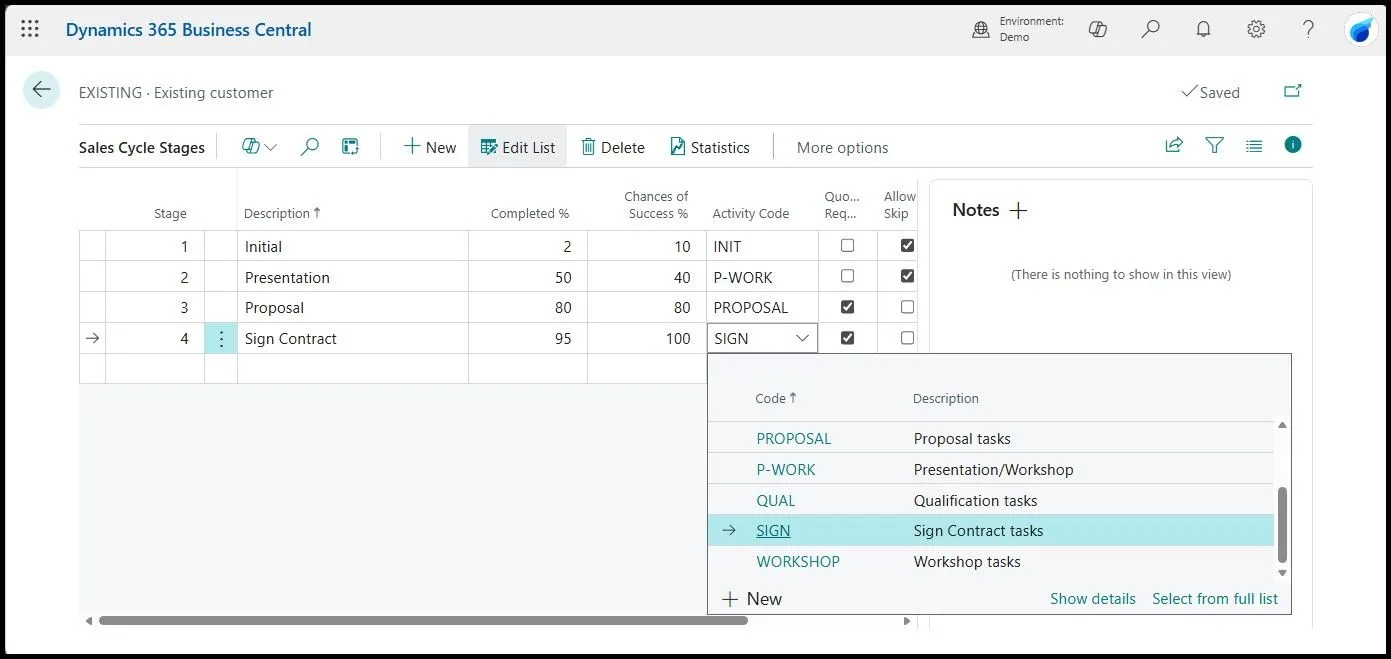
An opportunity is linked to a sales cycle that defines the various stages a salesperson needs to complete to develop the potential deal before an opportunity can be closed, won or lost. Sales cycles mirror your organisation’s sales process, which might vary based on whether the potential deal is for a new customer or an existing one.
Sales cycles have stages that represent the business process flow of the opportunity. Each stage has an activity code with lines that help the user complete specific tasks such as sending a presentation, preparing a contract or inviting the prospect to a company event.
Typical sales process in Business Central CRM
The CRM module extends the sales process in Business Central by introducing an additional upstream process, Prospect to Quote, to the core Order to Cash process.
- Contact Management: Create and maintain contacts
- Lead qualification: Interact with contacts to identify a potential deal (Unlike D365 Sales, BC does not support a formal qualification process)
- Opportunity Management: Create the potential deal in the form of an opportunity and move through the various stages.
- Sales Quotation: Create a sales quote linked to the opportunity which can be modified during the negotiation.
Core difference in how D365 Sales and Business Central handle the sales process
The core differences between how D365 Sales and Business Central CRM handle the sales process affect lead qualification and opportunity management.
In D365 Sales, admins can configure a lead qualification process flow with stages that ends with an opportunity. Each stage can require many activities that can be made mandatory. In Business Central that flow does not exist and users can go from a new contact to an opportunity in one click. The same principle applies to sales cycles and activities.
The second difference is that D365 Sales allows users to add products and use price lists on opportunities with advanced control on what products or services can or cannot be added to an opportunity. In Business Central, the opportunity holds an estimated value and cannot be attached to items.
Next steps
Do you need help optimising the sales lifecycle for your organisation?
Schedule a call to learn how we can help your team configure and run CRM in Business Central.