Register new customers in Business Central
Customers are the core source of a company’s income. In this article, I will describe everything you need to know to register new customers in Business Central.
Required setup
Before registering new customers in Business Central, we must check a few things on setup and configuration. The two most important are the customer numbers and customer templates.
Customer numbers
First of all, we need the number series for new customers. The field is the Customers Nos. in the Sales & Receivables page. You need to input a value in this field, even if you don’t intend to use a progressive number series for your customers.
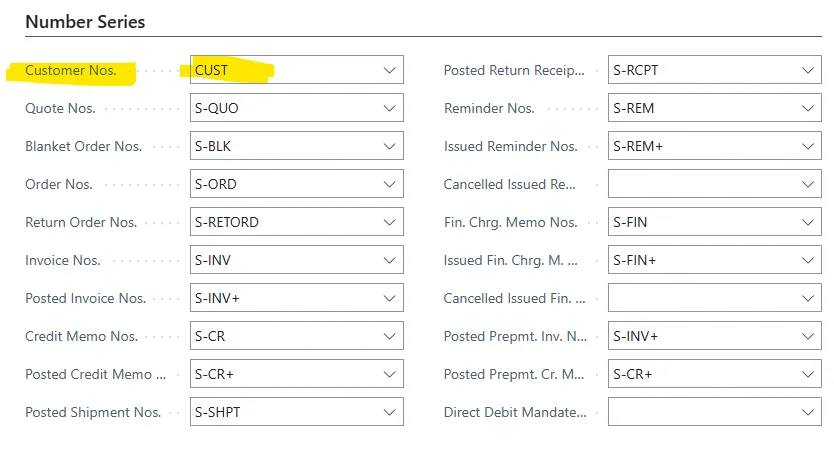
I recommend using a progressive number series for new customers, vendors and items. I will describe how to use manual number series in another article.
Customer templates
The next step is to manage customer templates. Customer templates are optional; small companies can work fine without customer templates. Even medium-sized enterprises operating in one sales channel don’t need customer templates.
However, it is easier to register new customers with a template because default values are copied from the template to the customers. If you copied the setup from the Cronus Database, you should have a few templates in Business Central. The below are from the GB localisation:
- Customer Company - For domestic customers, default values are domestic VAT and a 1-month payment terms.
- Customer EU Company - For EU customers, default EU VAT.
- Customer Person - For private customers - Prices include VAT and Cash on Delivery payment terms.
Regardless of the default setup, users can and should create templates that apply to the customer type or sales channel. For example, you can have a template for a customer belonging to a specific sales channel with default dimensions or salesperson codes.
Microsoft has extended the capabilities of the master data templates in wave 2 2021. Users can add new fields to templates using personalisation; see the Microsoft article here: Use new templates with the same flexibility as configuration templates.
Register a new customer
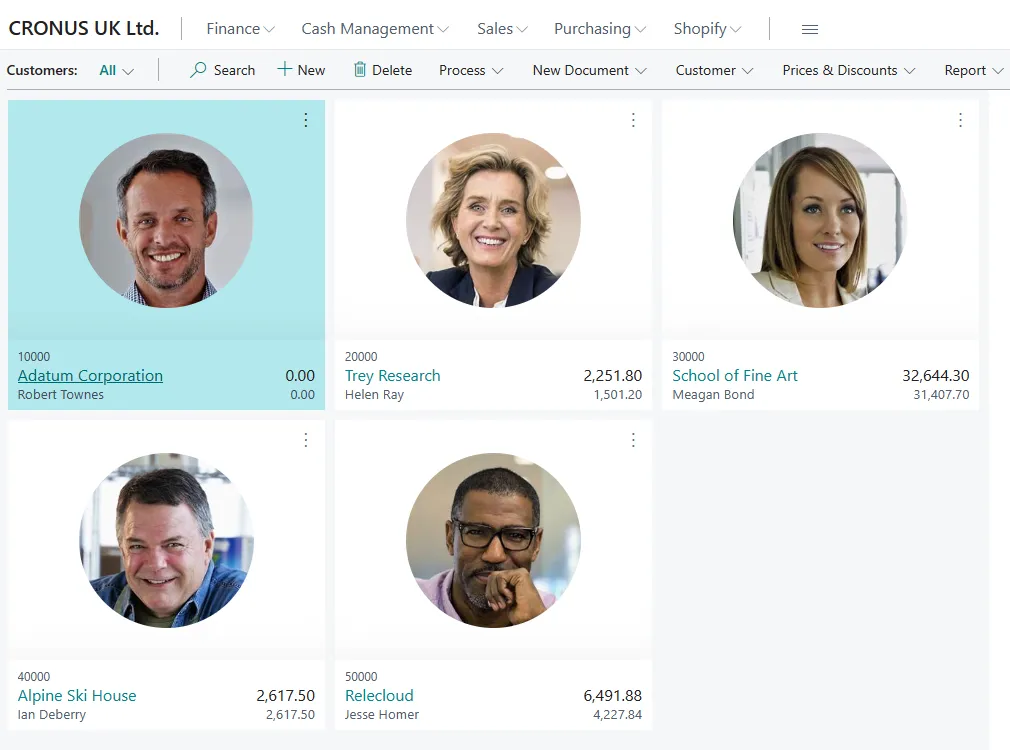
Once the Number series and the customer templates are in place, we can register new customers. The process is simple: start from the customer list page and click + New. If there are templates, Business Central will ask the user to select one. Then, a new customer card will show, and we can start unless we forget about the contacts.
Every time a user creates a new customer, vendor or bank account, Business Central automatically generates a contact. This is a mandatory field and cannot be skipped, even if you don’t use contacts or any other marketing functionality in Business Central. If the setup is incorrect, you will get an error like the one below:
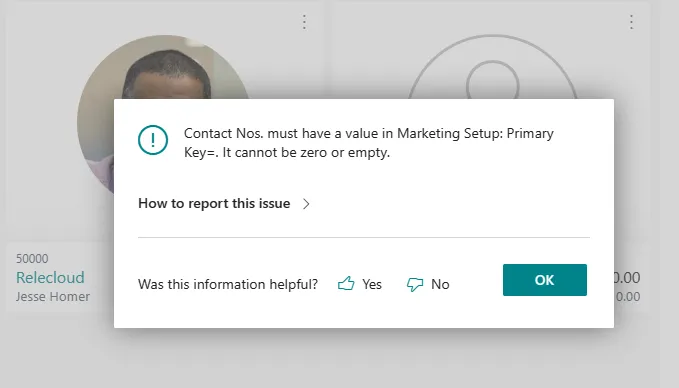
This is a common issue with new implementations because nobody considers looking at the marketing setup page if marketing is not in scope.
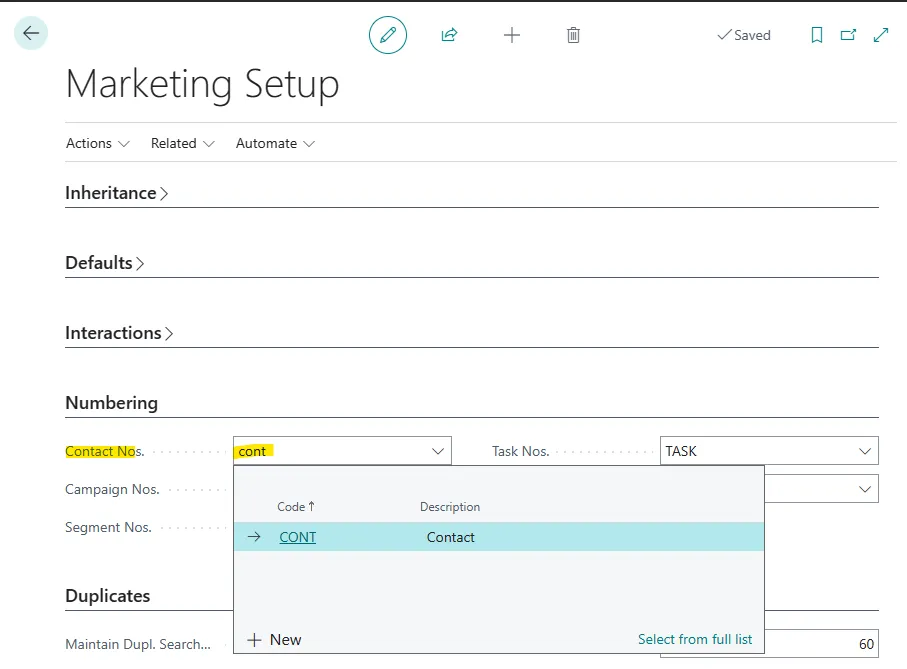
If you got that error message, open the Marketing Setup page and use a value from the number series table.
The customer card
When the new record in the customer table is created, Business Central will show a blank customer card. All fields are empty except for the customer number. The fields are arranged in fast tabs; let’s look at the fields one by one, their purpose and how to set these up correctly:
General
In this tab, we have the primary fields of the new customer, like No. and Name.
The following field is the IC Partner Code. This field is required only if the customer is intercompany, for example, a subsidiary, more on Intercompany Setup in this other post: Intercompany Transactions.
Below the three total fields that cannot be edited, we find the Credit Limit (LCY) field. This field must be set up in your local currency as the LCY in the description suggests (LCY = Local Currency).
One of the most critical fields in the customer card is the Blocked field.
This field can have only four values. Let’s look at what it does.
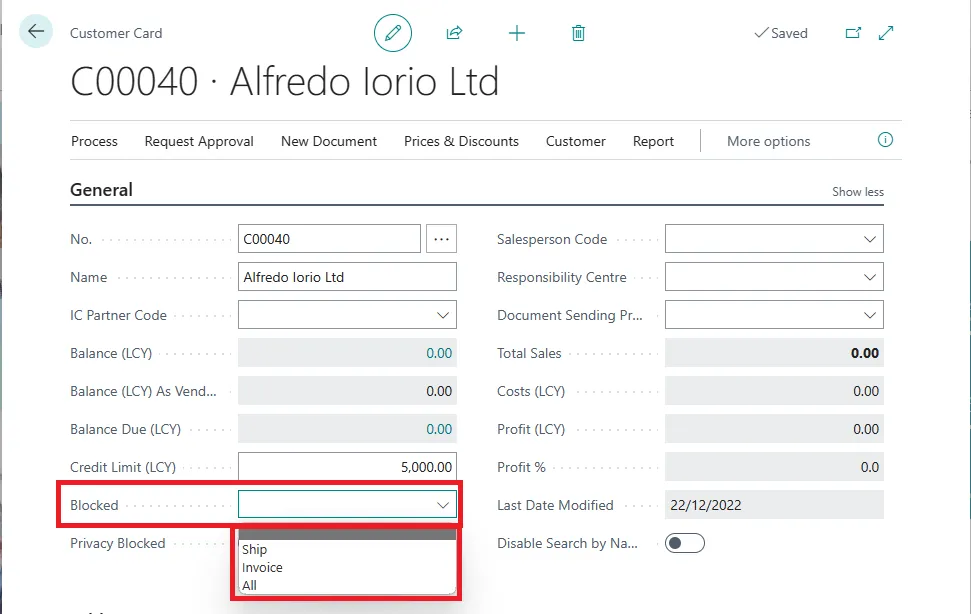
When the blocked field is blank, the customer is active, and we can register any documents and transactions against it.
When the field value is Ship, we cannot create new sales quotes or orders for this customer. We cannot ship existing orders or convert sales quotes into orders.
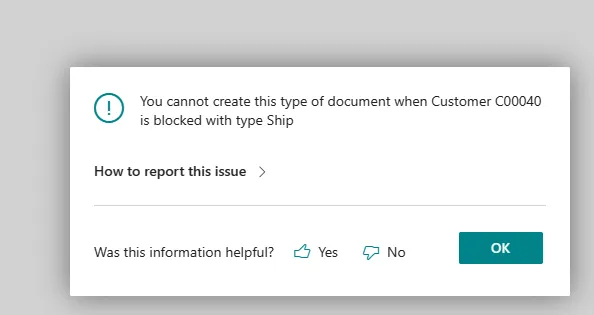
However, we can still create and post sales invoices, register payments and issue credit notes for the customer.
When the blocked field in the customer card is Invoice, we have the same limitations of Ship, with added restrictions: No new sales invoices or invoicing existing invoices are allowed. We can still create and post Sales Credit Memos and register payments for customers if the blocked is Invoice.
Lastly, no new documents or transactions are allowed if the field value is set to All. In the example below, I get an error if I try to apply a credit memo to an invoice to clear the customer balance.
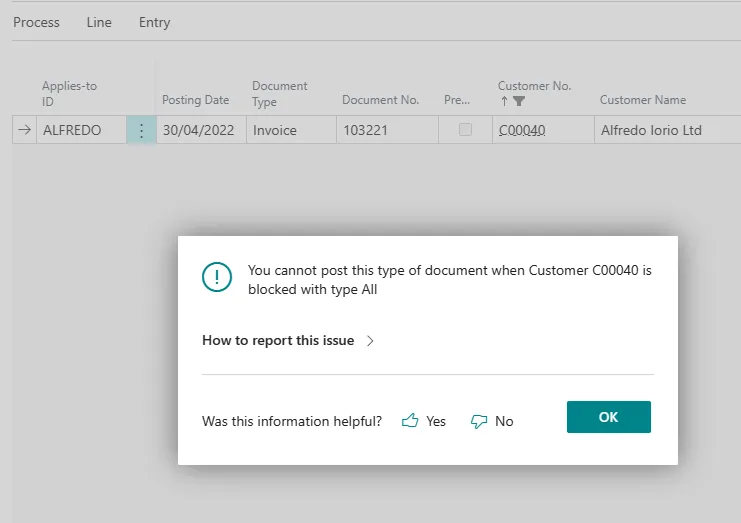
Other fields in this tab are Salesperson Code, which helps manage sales budgets and approvals, and the Responsibility Centre field. This field is rarely used but can help with various other functionalities. For example, a responsibility centre assigned to customers can help filter sales orders and invoices or even chase payments. Default dimensions can be assigned to responsibility centres for financial reporting or security filters and permissions.
Address & Contact
The address and contact tab serves two primary purposes: The first and most obvious is to record the customer’s billing address. The address details in this tab will be copied to every sales document created for that customer. This address will also be the default shipping address for the customer’s orders unless we create alternative shipping addresses for the customer, more on shipping addresses in the Shipping tab.
The second is to store the default contact code and Name for all customers’ transactions. If the setup for the number series is correct, we can create contacts for the customer by simply typing in the Contact Name field.
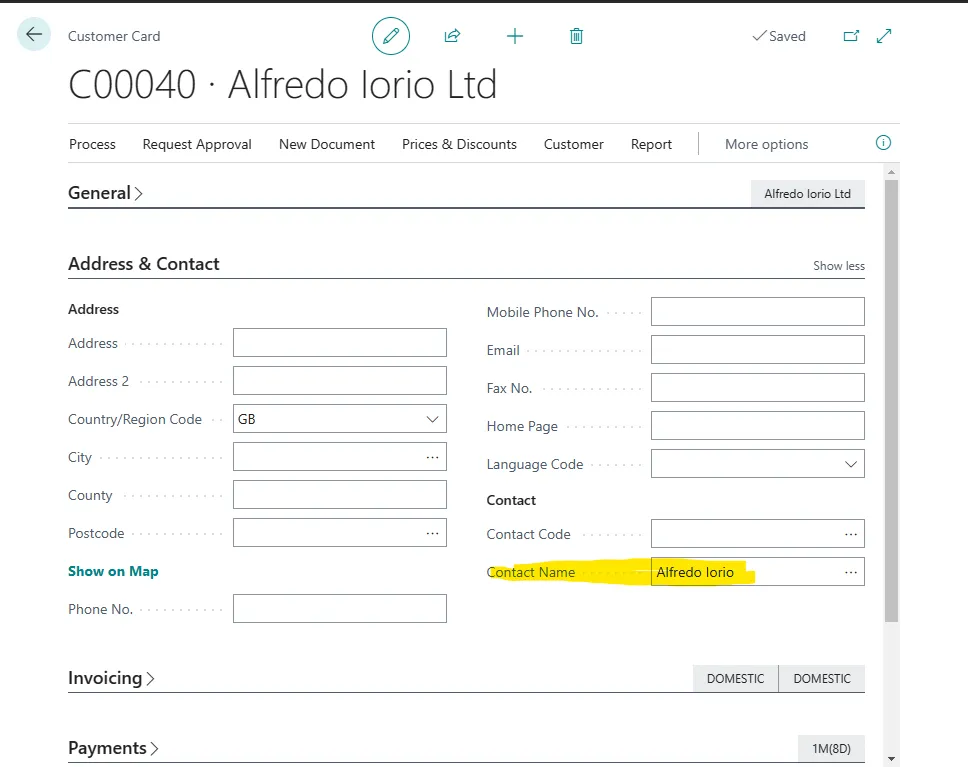
Contacts are part of the marketing module in Business Central.
Note: Don’t skip the country field in the customer address. If you use Intrastat, the country code of the sales documents is one of the many fields used by Business Central for Intrastat.
Invoicing
This tab has a few essential fields that can cause headaches if set up incorrectly. Let’s start with these first:
Under posting details, we have three fields for posting setup:
- General Business Posting Group:
This field is linked to the General Posting Setup and is part of the leading mapping matrix for posting entries to the general ledger. The value in this field varies depending on the company. As a general rule, this field is linked to customer region or type.
The most important reason to give your customer a different value in the general business posting setup is to post your revenues in different accounts. For example, if we look at the Cronus test database, we see values by region. In the GB database, we have DOMESTIC, EU and EXPORT. We can assign a different revenue account to each posting group on the general posting setup page.
Though most companies will be fine with the default setup, I always encourage my clients to find out the setup that will work best for the organisation. It might make sense for your company to categorise customers using a different logic, for example, sales channels like wholesale or retail.
- VAT Business Posting Group
The VAT Business Posting Group field in the customer card helps calculate the correct VAT amount on customer orders. Typically, there are two types of VAT posting groups for customers. Domestic, for which standard VAT is applied and Export, where VAT is not applicable. There is also a reverse charge VAT in some regions like the EU.
VAT requirements depend on local taxation rules. Check with your company’s finance manager before setting up this field.
- Customer Posting Group
This field determines the posting of sales transactions for the customer when posting payments, interests, fees and the A/R account when posting invoices. In most cases, it is acceptable to have customer posting groups that are the same as the general business posting groups.
However, some companies might require a different categorisation for their A/R entries than what they use for revenues and COGS. For example, revenues are categorised by sales channel - retail and wholesale, while A/R entries are registered by region - domestic and Export.
The Pricing and Discounts section is the invoicing fast tab’s next and equally important section.
Payments
In this section, we find the currency code. This field defaults a specific currency to new documents like sales orders and invoices. A different currency can also be applied to specific orders.
Customer price and discount group fields in this section are used in the pricing functionality. Microsoft has introduced significant changes to the pricing functionality in Business Central, and this feature can support even the most complex pricing policies. Customer price and discount groups allow linking multiple customers to specific prices and discount lists. This is only required if the same price list applies to multiple customers.
The invoice discount code is another important field; unlike the Name suggests, it is not linked to the price and discount functionality.
This field allows the application of a discount on the total invoice amount that is not calculated on the single lines. The setup to apply a discount when invoicing a customer is under the related menu.
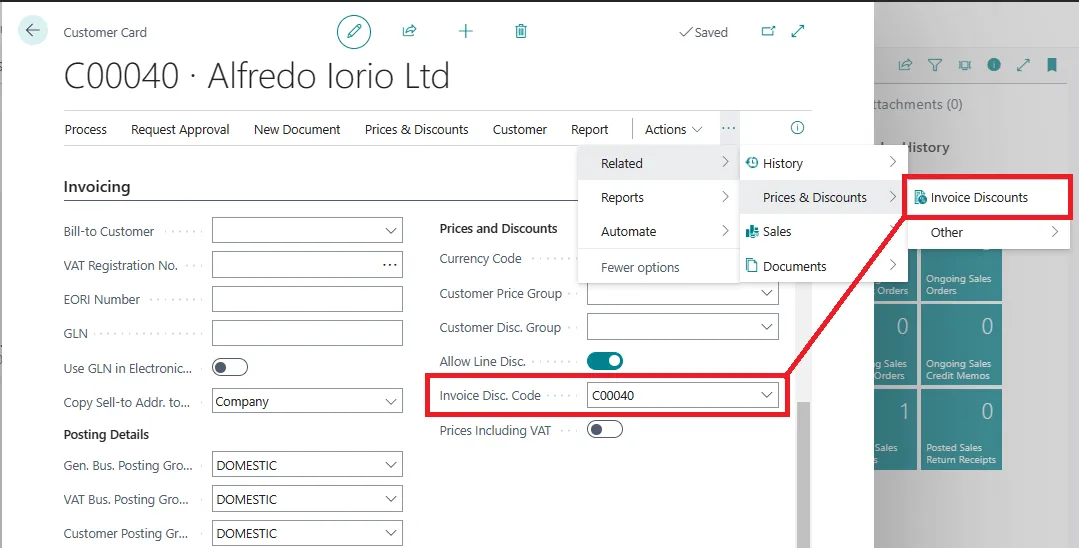
When opening the invoice discount page, we can set up a discount or a service charge that will be applied to the invoice when we post the document.
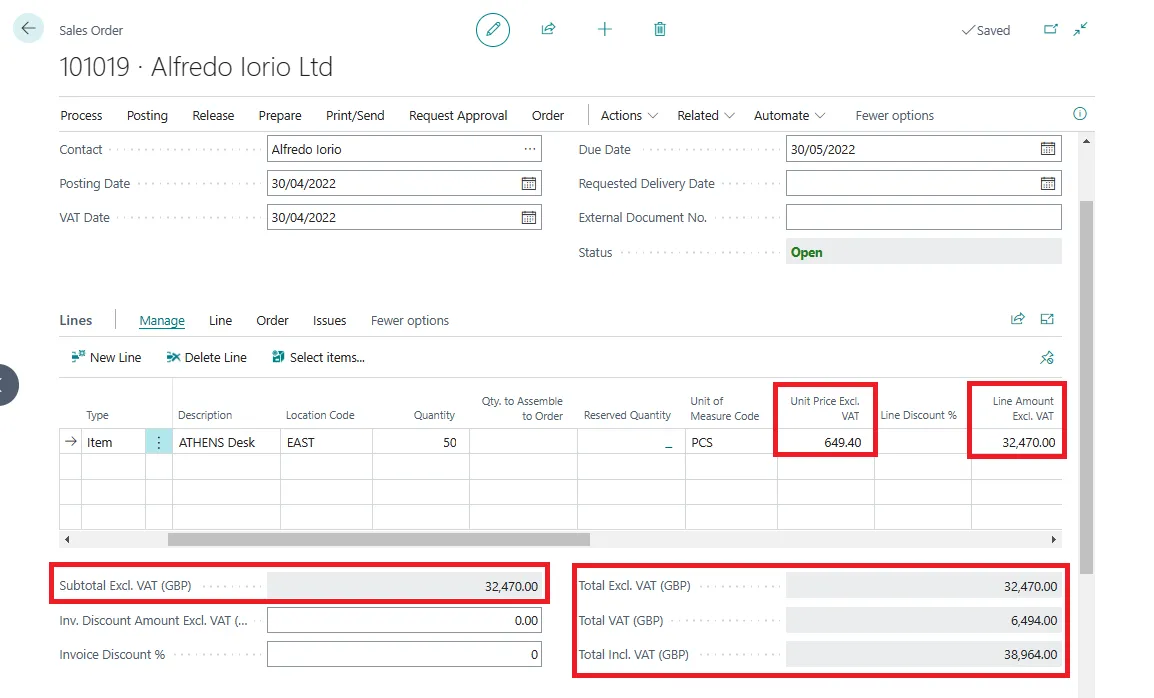
Lastly, we have the field Prices, Including VAT. This field operates on the sales documents for this customer, and it does not affect the VAT amount, only the VAT calculation. Let’s look at an example:
The order below is for a customer whose field Prices Including VAT is false. The line and the header show the amounts as excluded VAT, and the VAT amount is added to the subtotal.
Conversely, when the field prices including VAT is enabled, the calculation is different:
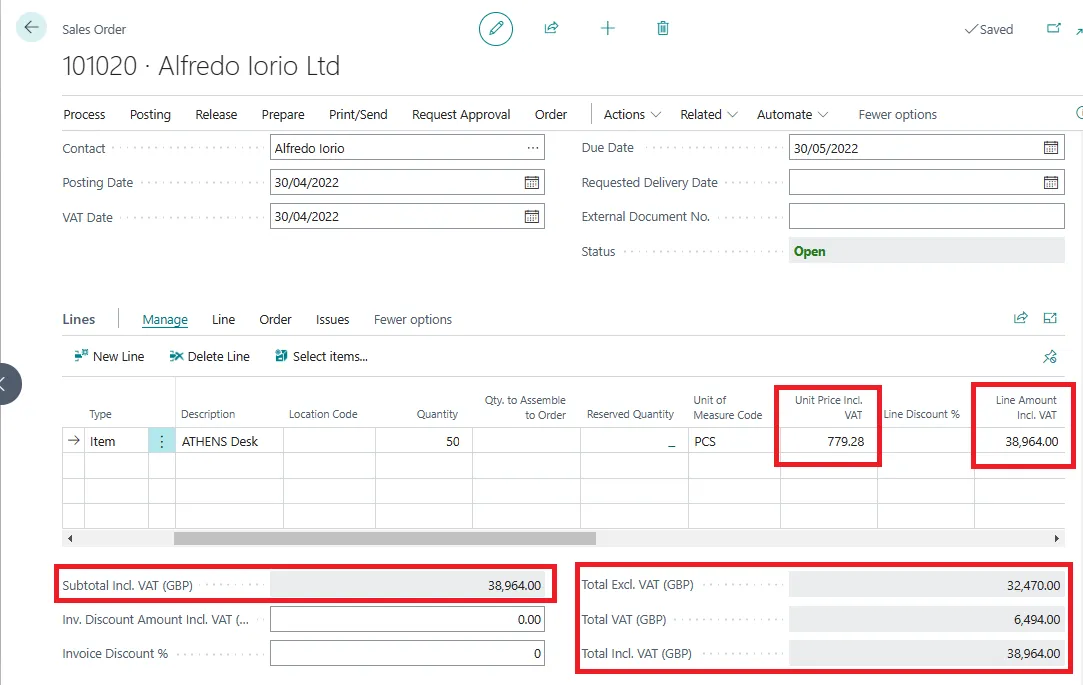
Typically, the flag should be on only for consumer customers, that is, B2C sales.
Shipping
This section contains all the main fields to manage outbound tasks for the customer.
The first is the Ship-to Code. This field is not mandatory and can be blank. If empty, Business Central will use fields in the address section as the shipping address. We can add many ship-to codes and default one in this field for the customer.
The location code is also optional. The location code on new orders will default to the value in this field if it’s populated. Users with permissions can always change the default location on specific sales orders. Companies with no WMS (Warehouse Management System) requirements might not need to use locations.
The combine shipment field determines if multiple shipments can be combined into a consolidated invoice for this customer. Specifically, with this field, we can use the Combine Shipment functionality for this customer that allows us to run a job and automatically create consolidated invoices for this customer. Users can manually pull down shipments into a consolidated invoice even if this field is disabled. More details here: How to Combine Shipments on a Single Invoice.
The Reserve field controls if we can reserve stock on customer orders. The reservation system includes complex functionalities like item tracking and requisition. I cover item tracking in this post: The Complete Guide to Lot Numbers.
Most companies with simple inventory policies don’t need to use the reservation system and can leave this field value as Optional.
The Shipping Advice field in the customer card drives an interesting functionality. Shipping advice can be Partial or Complete.
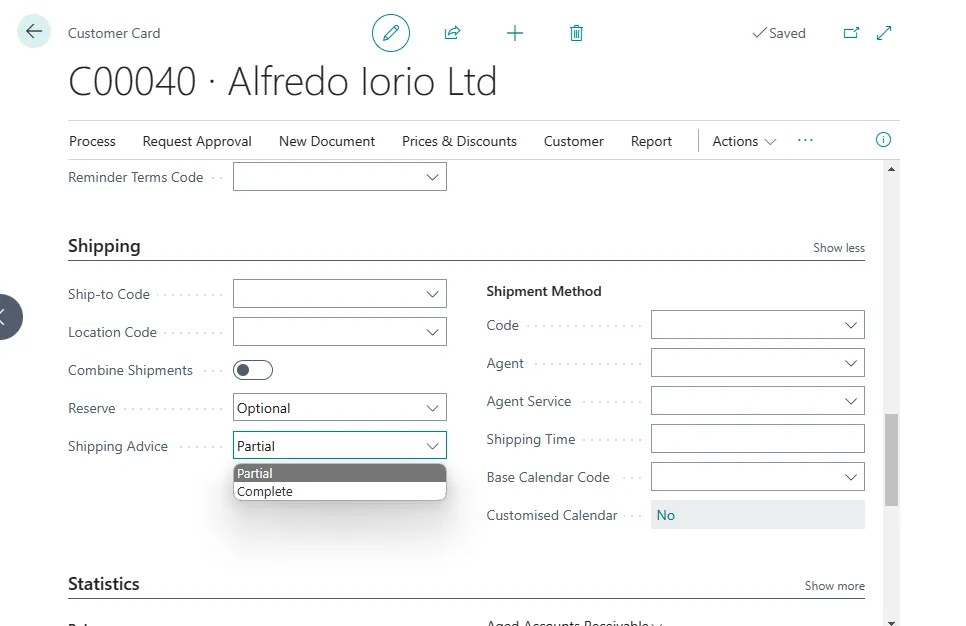
When the field Shipping Advice is Partial, Business Central allows the part-shipment of orders for this customer. When the value is Complete, orders can be shipped only in full.
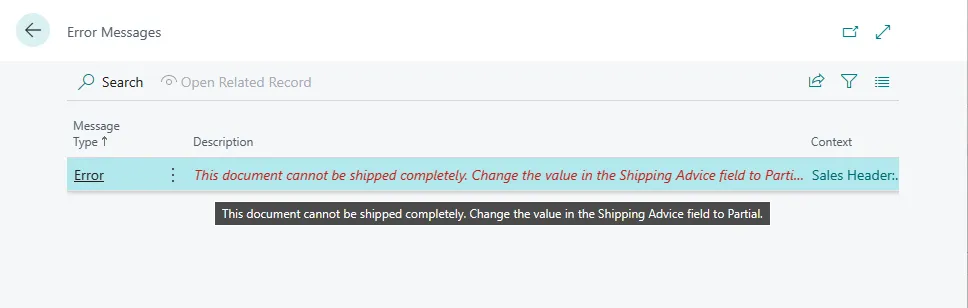
The validation of this field will happen when a user ships the order. Users will get the error message below if they try to part-ship an order where the field Shipping Advice is set to Complete.
Shipment Method field group
Under the Shipment Method group, we find fields to default specific shipping agents for the customer’s order and two fields to calculate lead time and delivery date.
Business Central’s planning system for shipping goods, with or without WMS, is complex. Let’s look at these fields:
Shipment Method code is the default incoterms agreed with the customer
The shipment method codes are already set up in the Cronus database with the most common incoterms.
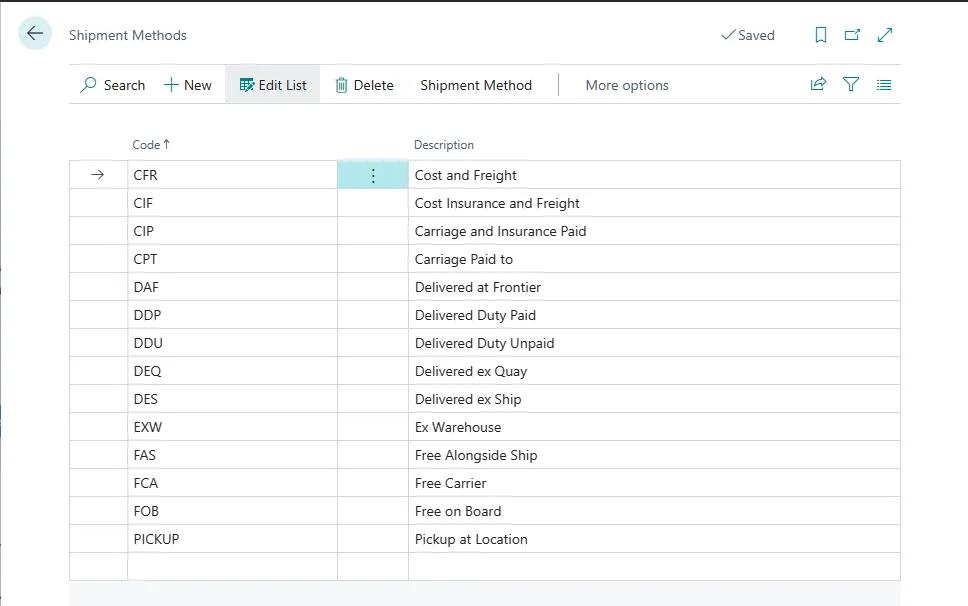
More info about incoterms in this article from Investopedia: Incoterms Explained: Definition, Examples, Rules, Pros & Cons.
The next field is called Agent, which defines the shipping agent code that will default to new orders created for the customer.
Note: The shipping fields in the customer card are copied to new orders. These are the default values, but users can change any of these fields for specific orders.
The shipping agent is the default courier or freight forwarder to ship the goods to this customer. This is often a courier but can also be a company’s fleet. Like all the fields in this group, the shipping agent and the next field - shipping agent service - can differ for specific ship-to codes associated with this customer. For example, a customer might have a store in London and another in Manchester. Suppose the company’s depot is in southeast England. In that case, shipping orders for London with the company’s fleet makes more sense while using a courier to fulfil orders with Manchester’s destination.
The shipping agent service typically represents a shipment type like next-day economy or overnight. The shipping agent service can have a default lead time that Business Central will use to calculate delivery dates and other planning features.
The shipping time on the customer card is a time formula that determines the shipping date on new orders, also known as “Customer Lead Time”, the shipping time. More details in this article from the Microsoft website: Delivery Date Calculation for Sales.
Business Central can handle complex calculations and different scenarios when calculating planning dates for sales and purchases. This includes warehouse receipt and picking time.
Finally, the base calendar field allows the assignment of a calendar to a customer to calculate planning dates while taking into account working days and bank holidays.
In summary
By following the steps and tips in this document, you can create and manage your customers efficiently and effectively. You can also use customer templates, contacts, shipping methods, and pricing features to customise customer data and transactions.